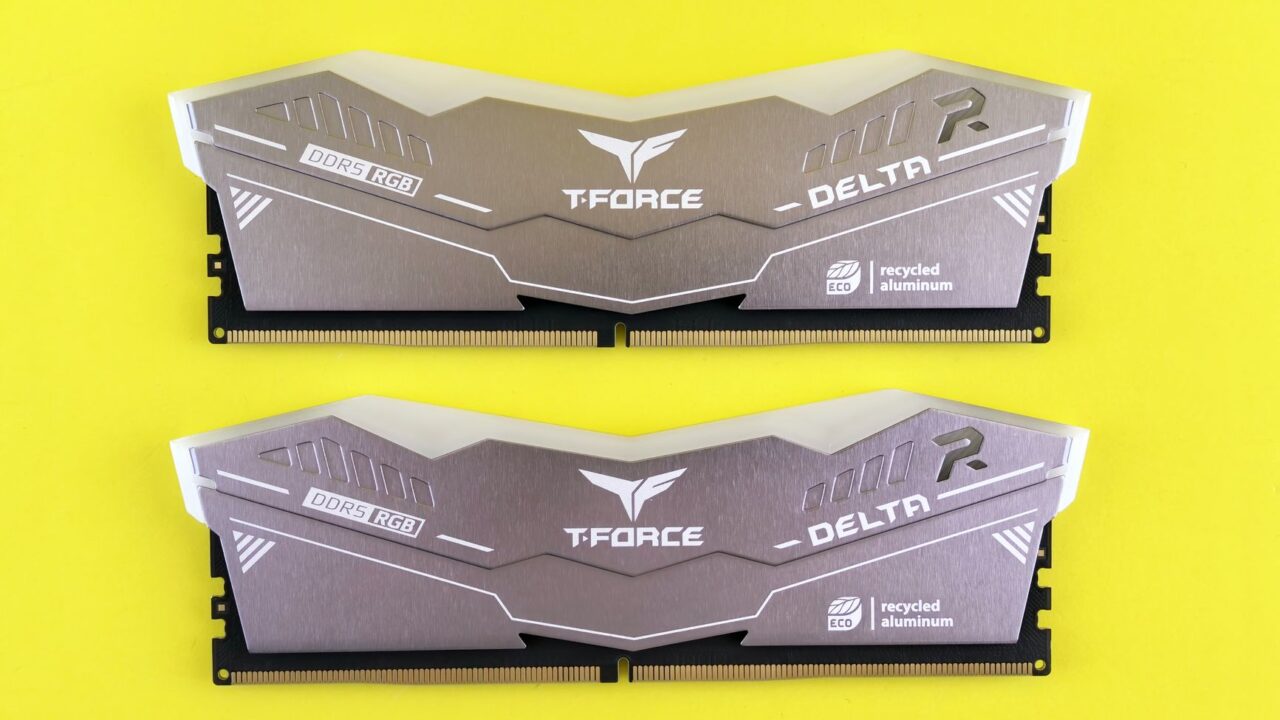
If you just built a PC or installed new memory, there’s a good chance it’s running below its rated speed right now. This guide is for anyone who wants to enable XMP or EXPO in their BIOS so RAM finally hits the speed printed on the box, whether you’re on an Intel or AMD system. By the end, you’ll know how to turn the profile on, what to do if your PC won’t boot afterward, and how to confirm everything is stable.
Out of the box, RAM runs at the conservative JEDEC standard speed, not the faster speed advertised on the packaging. Intel XMP (Extreme Memory Profile) and AMD EXPO (Extended Profiles for Overclocking) are preset profiles stored on the memory module itself, tested by the manufacturer, that tell your system to run at the higher rated speed, timings, and voltage. Enabling one of these profiles is technically overclocking, but it’s a manufacturer-supported, one-click version rather than manual tuning.
Before you start
- Confirm your motherboard supports XMP (Intel) or EXPO (AMD). Intel XMP works on Z and B series boards with Intel Core Ultra and Core K-series processors. AMD EXPO works on socket AM5 boards with X870E, X870, X670E, X670, B850, B840, and A620 chipsets.
- Check that your RAM is actually XMP or EXPO certified, not just fast DDR4/DDR5. Most kits marketed as “gaming” memory list this on the box or product page.
- Know your CPU’s maximum supported memory speed. If your RAM is rated higher than your processor officially supports, you may need to set a lower profile.
- Update your BIOS to the latest version first, especially on AMD boards, since a motherboard may not fully support a newer processor or RAM kit without it.
- No files or settings are erased by enabling XMP/EXPO, but if you’re uncomfortable entering BIOS, note your current boot order and any custom settings before you start, just in case you need to reset to defaults.
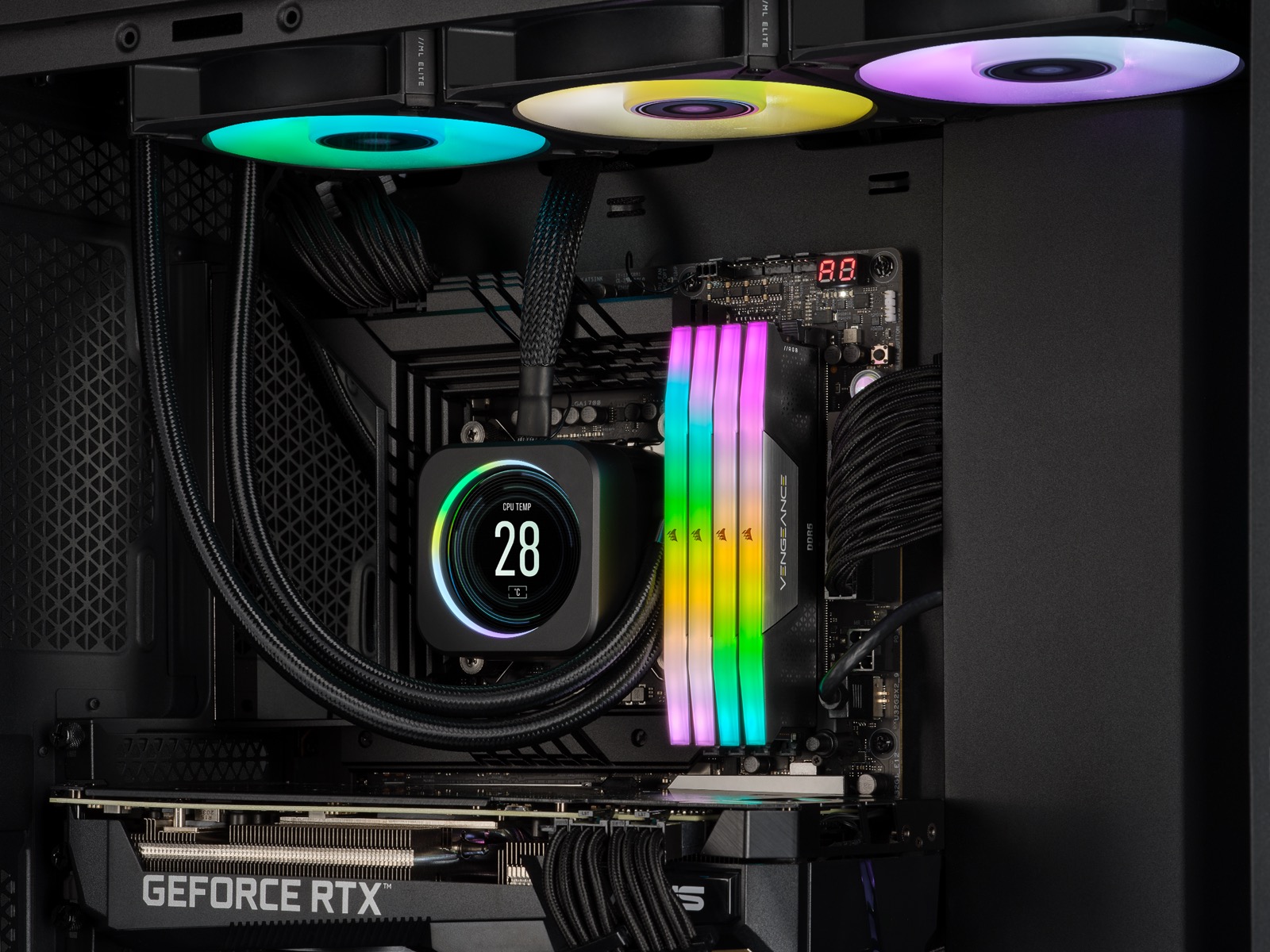
How to enable Intel XMP
- Restart your PC and enter the BIOS/UEFI setup (commonly by pressing Delete or F2 during boot, though this varies by motherboard brand).
- Find the memory settings. Intel’s own example path is Performance > Memory, but the menu name varies by motherboard brand (for example “Ai Tweaker” on ASUS or “OC” on MSI), so check your board’s manual if you don’t see it.
- Select the correct XMP Memory Profile for your kit.
- Save the settings and restart.
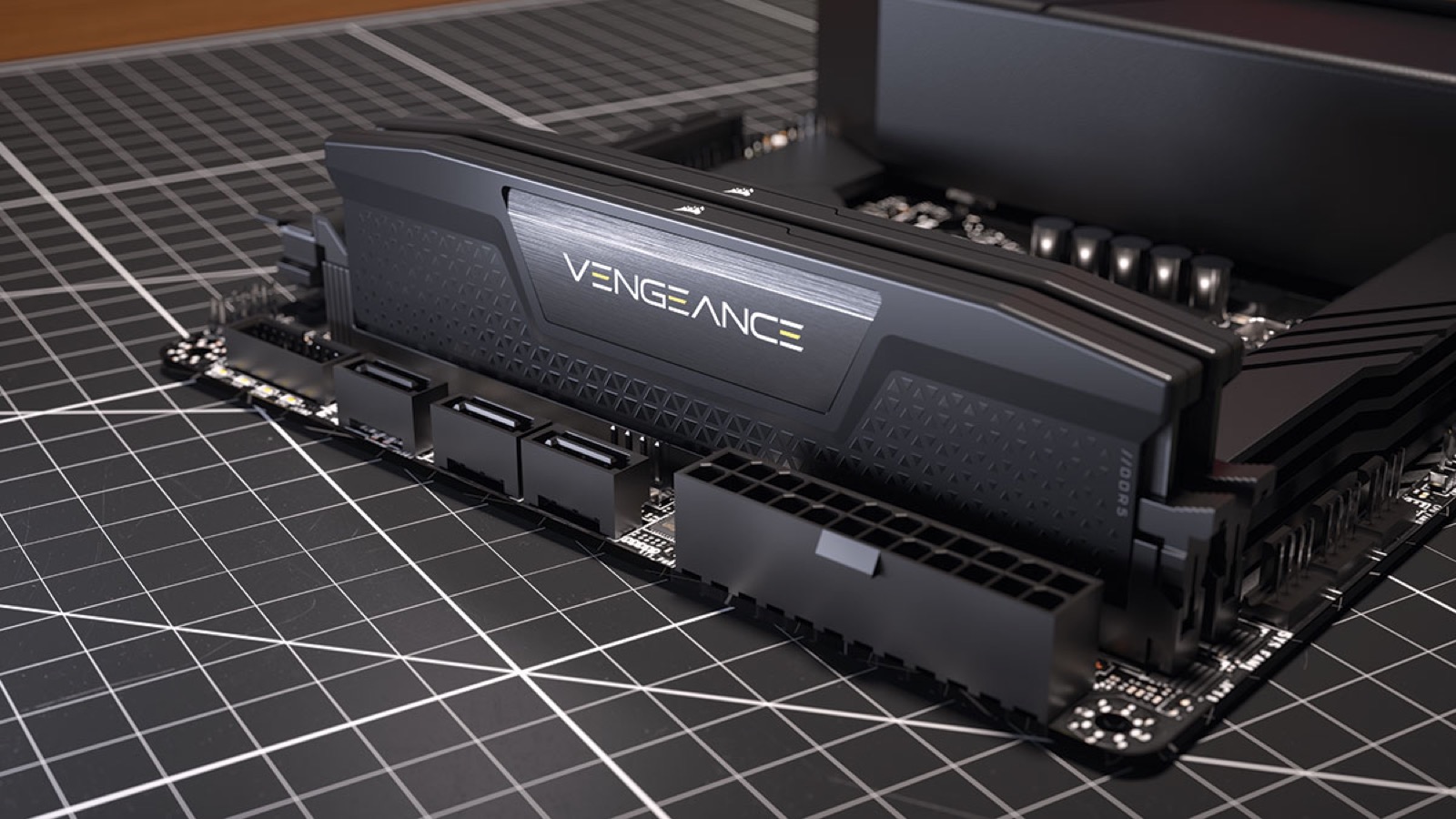
Intel XMP versions to know
Intel XMP 2.0 applies to DDR4 memory paired with 12th and 13th Generation Intel Core processors. Intel XMP 3.0 applies to DDR5 memory and newer Intel Core processors. Your motherboard and RAM combination determines which version is relevant, so check both before assuming a profile will work.
How to enable AMD EXPO
- Make sure your BIOS is fully updated, since AMD EXPO support on a given board often depends on having a recent BIOS version.
- Restart and enter the BIOS/UEFI setup.
- Find the EXPO setting in your motherboard’s performance or memory menu. Exact menu names differ between ASUS, MSI, ASRock, and Gigabyte boards, so check your specific motherboard’s manual or support page if you don’t see it immediately.
- Select the EXPO profile and save your settings.
Because EXPO menu paths vary so much by brand, this is one case where it genuinely pays to check your motherboard manufacturer’s documentation rather than guessing.
What happens after you enable it
On first boot, Intel XMP systems default to the safe JEDEC settings so the machine starts up successfully even if something isn’t fully compatible. Once that first boot completes, you can then select the XMP profile in BIOS and it will apply on every subsequent restart.
With EXPO, expect the system to go through memory training when you first enable the profile. This can mean a noticeably longer boot time, and the PC may reboot itself several times before fully starting. This is normal and not a sign of failure, so don’t panic if your screen goes black and the machine restarts more than once.
If it still doesn’t work
If the BIOS can’t get the enabled profile to boot, it will automatically step down: first trying the enabled XMP or EXPO profile, then falling back to default settings, then dropping to the lowest supported profile, and finally aborting the boot entirely if nothing works. If you land in this situation, work through these checks:
- Confirm your RAM speed doesn’t exceed what your specific processor officially supports. For example, an Intel Core i5-13400 supports up to DDR5-4800 or DDR4-3200, so setting a 5200MHz-rated kit to its full speed on that CPU can cause instability. In that case, manually select a lower, supported speed instead.
- Verify your motherboard and memory are both on the compatible list by checking the manufacturer’s technical specifications or compatibility tool.
- Update your BIOS to the latest version if you haven’t already, since boards sometimes need a BIOS update to properly support a given processor or memory kit.
- Reseat the memory modules and try them in different slots.
- If the system won’t start at all after enabling the profile, reset the BIOS to its defaults with your motherboard’s Clear CMOS button or jumper (your motherboard manual shows where it is), then try a lower memory speed. If it still won’t boot, contact the motherboard manufacturer.
FAQ
Does enabling XMP or EXPO void my warranty?
It can, depending on the brand. AMD’s official EXPO page says that running AMD processors or memory outside AMD’s published specifications, including through EXPO, will void any applicable AMD product warranty, and may also void warranties from the system maker or retailer. Intel’s XMP page doesn’t address warranties. If coverage matters to you, check the warranty terms of your memory, motherboard and processor before enabling a profile.
Why is my PC taking so much longer to boot after enabling EXPO?
This is expected behavior. Enabling EXPO triggers memory training, which can cause a longer boot time and multiple automatic reboots the first time it runs. Subsequent boots should return to normal.
Can I set my RAM to run faster than my CPU officially supports?
You can try, but it’s not recommended. Forcing a profile above your processor’s rated memory speed pushes the memory controller beyond what it’s designed for and can create inconsistent performance or instability. Stick to your CPU’s documented maximum supported speed.
Will my system lose data if XMP or EXPO fails to boot?
Official Intel and AMD documentation doesn’t include specific warnings about data loss from enabling these profiles. If the profile fails, the BIOS automatically falls back to safer default settings rather than leaving the system stuck.
The bottom line
Enabling XMP or EXPO is a quick way to get the memory speed you actually paid for, and the process is designed to fail safely if something isn’t compatible. Just double-check that your motherboard, CPU, and RAM are all meant to work together before you flip the switch, and keep your BIOS updated so you get the full benefit of your kit’s rated speed.
More PC guides: See all our PC building guides — build, upgrade and fix your gaming PC.
Where to buy

As an Amazon Associate I earn from qualifying purchases.