If you’re ready to move from Arc browser to Chrome, Safari or Firefox, this guide walks you through carrying over your bookmarks and saved passwords using each browser’s official import tools. It’s written for anyone switching daily-driver browsers who doesn’t want to start from a blank slate, and by the end you’ll have your bookmarks, logins and (where possible) your open tabs set up in your new browser of choice.
Before you start
- Keep Arc installed on your device until you’ve confirmed everything imported correctly in your new browser.
- Any exported password file is unencrypted. Plan to delete it immediately after importing, and don’t leave it sitting in a shared folder or cloud drive in the meantime.
- If you use Safari’s built-in “Import From Browser” option, you’ll need Chrome or Firefox installed on the same Mac, since Safari does not list Arc as a supported source — more on that below.
Step 1: Save your data from Arc
Arc stops working on Mac and Windows on December 22, 2026, and its phone apps lose sign-in and tab sync on November 23. The Browser Company says the latest version of Arc adds an option to export your data, so update Arc before you start.
- On a Mac, go to Arc > Settings in the menu bar, select Advanced, then Export Data. Choose where to save the file and select Save.
- On Windows, press Ctrl + , (or open the Arc menu and select Settings). In the Advanced section, find Export Spaces and tabs, select Export Data, then choose where to save it.
- On iPhone (Arc Search), tap the Tab Switcher in the bottom-left corner, tap Settings, then Export Data. On Android, tap the Tab Switcher, then Settings > Storage > Export data.
According to The Browser Company, this export saves your Spaces and tabs as a list of links you can open in any browser. Arc is built on Chromium, the same engine as Chrome, so you can save your passwords as a CSV file by typing arc://password-manager/settings in the address bar and choosing Export passwords. If you don’t see that option in your version, the chat on Arc’s Help Center at resources.arc.net covers exporting data until December 22.
The shortcut: if you’re open to Dia, The Browser Company’s new browser, you don’t need to export anything. Dia imports your passwords, history, tabs, Profiles, Folders, bookmarks and extensions straight from Arc. On a Mac, go to Dia > Import from Another Browser; on Windows, open the Dia app menu and select Import from another browser.
Step 2: Move your bookmarks and passwords to Chrome
- Have the files you saved in Step 1 ready.
- If you’re importing passwords, open the exported CSV and make sure the first line lists the column names “url”, “username” and “password” — Chrome needs these headers to read the file correctly.
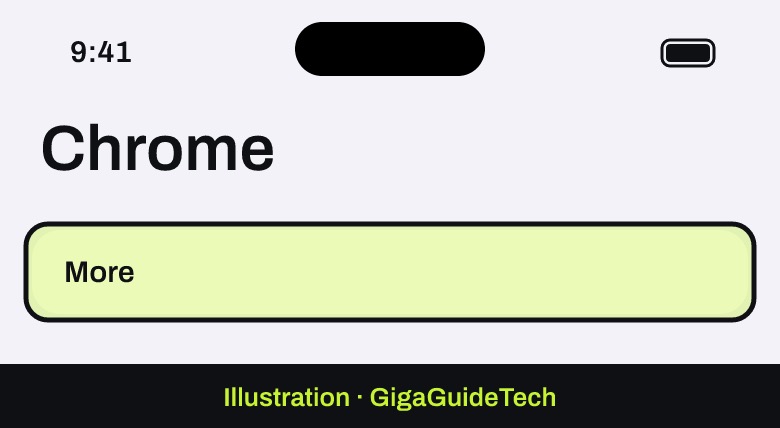
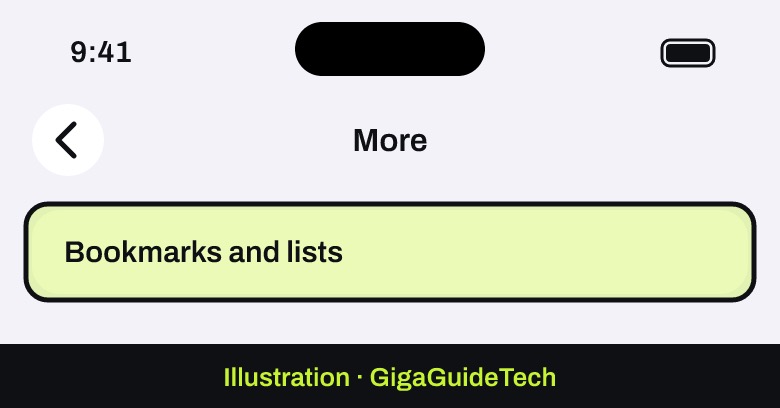
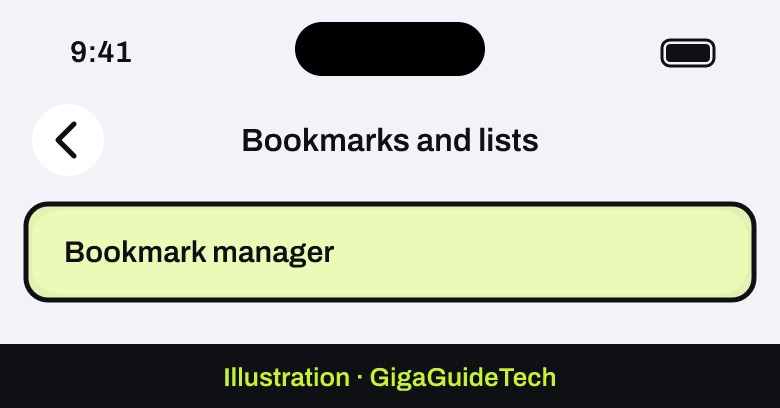
- Open Chrome and click More in the top right, then go to Bookmarks and lists and select Bookmark manager.

Illustration: Chrome > More Illustration: Chrome > More > Bookmarks and lists Illustration: Chrome > More > Bookmarks and lists > Bookmark manager - Click Organize in the top left, then choose Import Bookmarks from HTML file and select your bookmarks file. This works with an HTML bookmarks file; if your Arc export is a plain list of links, open the links and bookmark the ones you want to keep.
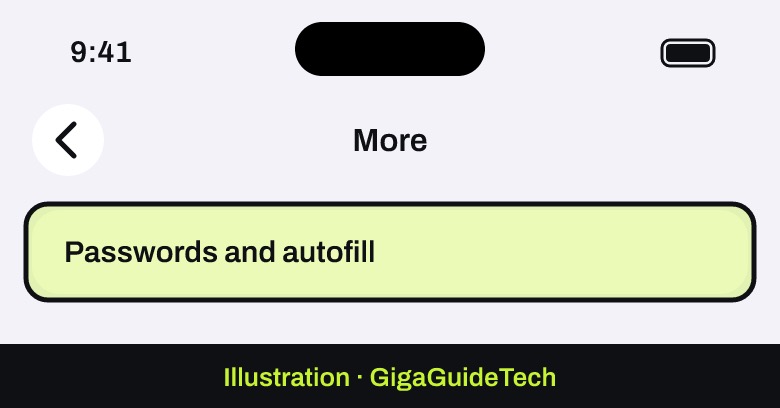
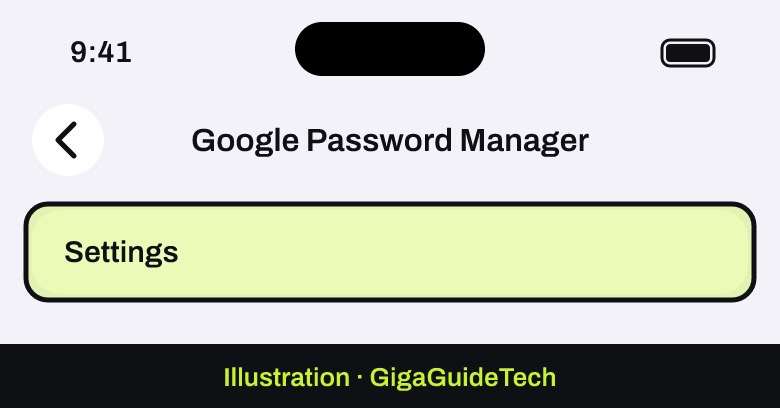
- For passwords, click More again, then Passwords and autofill, then Google Password Manager, then Settings.
Illustration: Chrome > More > Passwords and autofill > Google Password Manager Illustration: Chrome > More > Passwords and autofill > Google Password Manager > Settings - Under “Import passwords,” click Select file, choose your CSV file, and follow the on-screen instructions to finish.
- Once the import is confirmed, delete the CSV file from your device.
Or move them to Safari
On a Mac
Safari’s automatic import feature only recognizes Chrome and Firefox as source browsers, not Arc directly. If you also have Chrome or Firefox installed and have already synced or imported your Arc data into one of them, you can use this shortcut. Otherwise, use the manual file-based import below.
- Open Safari. If this is the first time you’ve opened it after using Chrome or Firefox, a prompt at the bottom of the start page may ask if you want to keep imported items — select Keep your imported items if so.
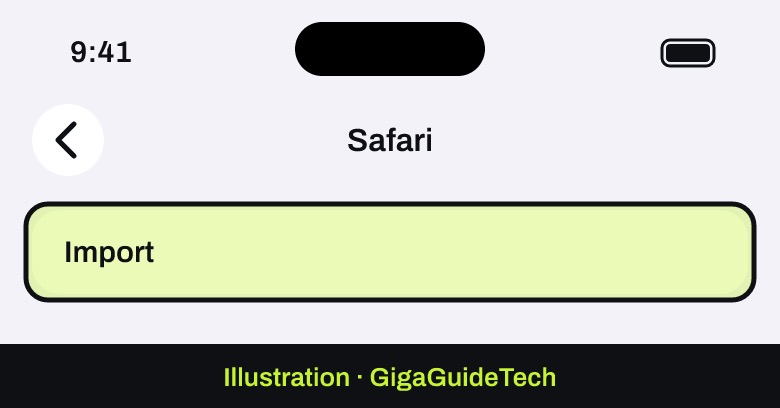
Illustration: Settings > Apps > Safari - To import manually at any time, go to File, then Import From Browser, and choose Google Chrome or Firefox, then select the items to import and click Import.
Illustration: Settings > Apps > Safari > Import - To import a bookmarks file directly, choose File, then Import From, then Bookmarks HTML File, select the file you exported from Arc, and click Import.
- To import passwords directly, choose File, then Import From, then Passwords CSV File, select your CSV file, click Import, and enter your Mac’s login password when prompted.
- After the import finishes, delete the CSV file to protect your account security — it’s not encrypted.
On iPhone or iPad
- Make sure the HTML or CSV file you exported from Arc is saved somewhere accessible on your device, such as the Files app.
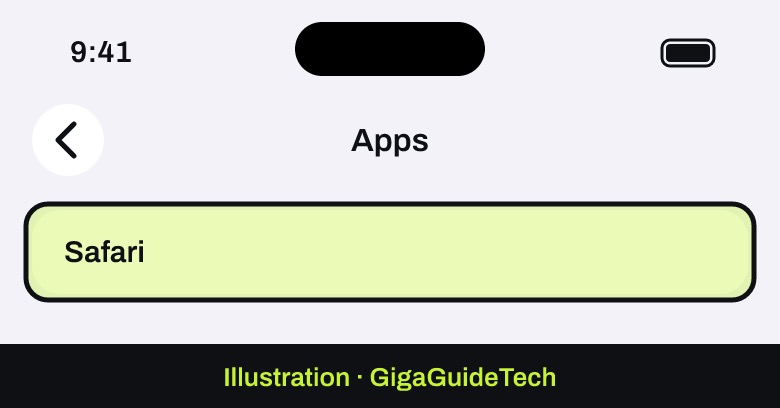
- Go to Settings, tap Apps, then tap Safari.
- Below “History and Website Data,” tap Import, then tap Import to Safari.
- Once the import is complete, delete the file you imported — it may contain unencrypted data visible to anyone with access to it.
Or move your passwords to Firefox
Firefox’s password import tool is only available on the desktop version of the browser, so you’ll need to do this step on a computer even if you plan to use Firefox mainly on mobile afterward.
- Open the latest version of Firefox on your desktop and click the menu button in the top right.
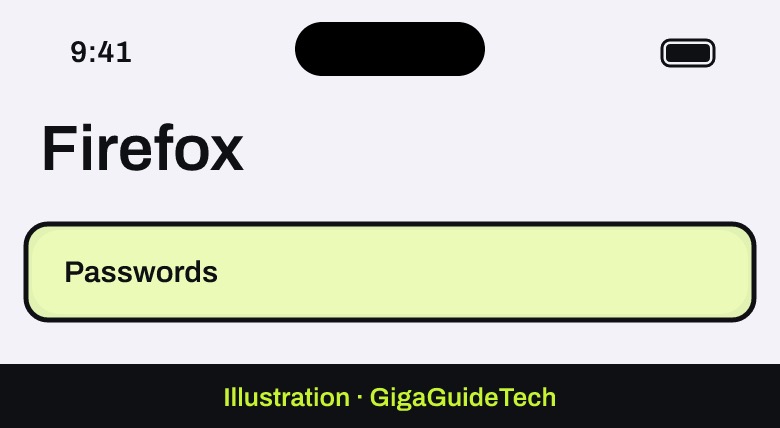
- Select Passwords.
Illustration: Firefox > Menu > Passwords - On the Firefox logins page, click the three-dot menu icon, select Import from a File, choose the passwords CSV you saved from Arc, and follow the prompts.
- Delete the CSV file once your passwords show up in Firefox.
If it still doesn’t work
- Double-check that your exported bookmarks file is in standard HTML format and that your passwords file is a CSV with the expected column headers — files in the wrong format will fail to import in Chrome, Safari or Firefox.
- If Safari doesn’t recognize Arc as a browser to import from automatically, use the manual “Import From” options for an HTML or CSV file instead, as outlined above.
- If you can’t find an export option inside Arc, update it to the latest version or ask the chat on Arc’s Help Center (resources.arc.net) before December 22, 2026.
- Always delete password export files once you’ve confirmed the import worked, since none of these CSV files are encrypted.
FAQ
Can I import directly from Arc into Chrome, Safari or Firefox?
Only Dia, The Browser Company’s own browser, imports straight from Arc. For Chrome, Safari or Firefox, save your data from Arc as files first (Step 1), then use each browser’s import tool.
Is it safe to leave my exported passwords file on my computer?
No. Exported password files are not encrypted, so anyone who can open the file can read your saved logins. Delete the file as soon as you’ve confirmed your passwords imported correctly.
Can I transfer my open Arc tabs to a new browser?
Yes. Arc’s Export Data option saves your Spaces and tabs as a list of links that you can open in any browser.
Do I need to keep Arc installed during the move?
It’s a good idea to keep it installed until you’ve verified your bookmarks and passwords show up correctly in your new browser, in case you need to re-export anything or double check your data.
The bottom line
Don’t wait for December 22: update Arc, export your tabs and passwords, and bring them into Chrome, Safari or Firefox with their built-in import tools, or let Dia import everything in one go. Whichever browser you pick, delete the unencrypted password file as soon as the import is done.
Sources: Google Help, Apple Support, The Browser Company