This guide is for anyone using Windows 11 who has opened an app only to find its window is missing, half-visible at the edge of the screen, or completely invisible after disconnecting a second monitor. By the end, you’ll know how to move a window that’s off screen back into view using keyboard shortcuts, Task Manager, or Windows display settings, without losing any unsaved work.
This usually happens because Windows remembers where a window was last positioned, including on a monitor that’s no longer connected. Instead of resetting the window to your main screen, Windows tries to place it at those old coordinates, which now fall outside your visible display area.
Before you start
- This applies to Windows 11.
- You don’t need any special software; every fix below uses built-in Windows features.
- No personal data is deleted by these steps, except if you choose to use End task in Task Manager, which can lose unsaved work in that specific app.
Method 1: Win+Shift+Arrow (try this first)
This is the fastest fix and often solves the problem in one step.
- Click the app’s icon in the taskbar to make sure it’s the active window, even if you can’t see it on screen.
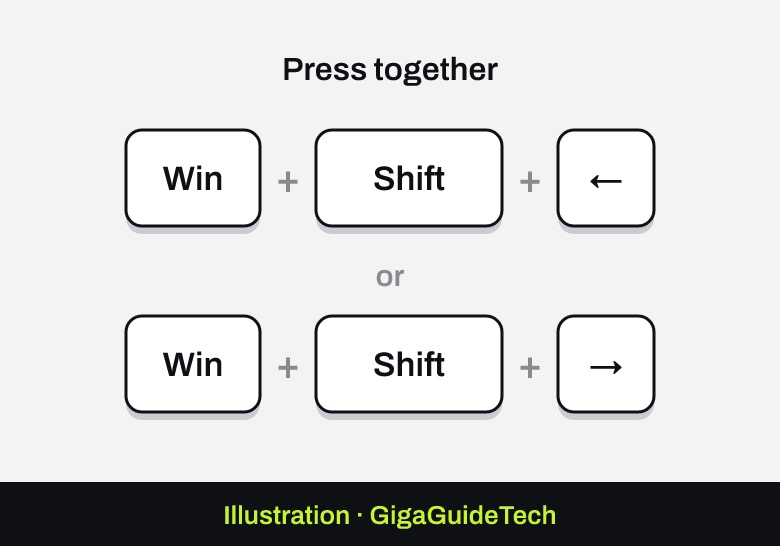
- Press Windows key + Shift + Left Arrow or Windows key + Shift + Right Arrow.
- Repeat the key combination if needed until the window appears on your active display.
Method 2: Alt+Space, then Move
If the shortcut above doesn’t bring the window back, use the classic system menu move command.
- Press Alt+Tab to select the off-screen app so it becomes the active window.
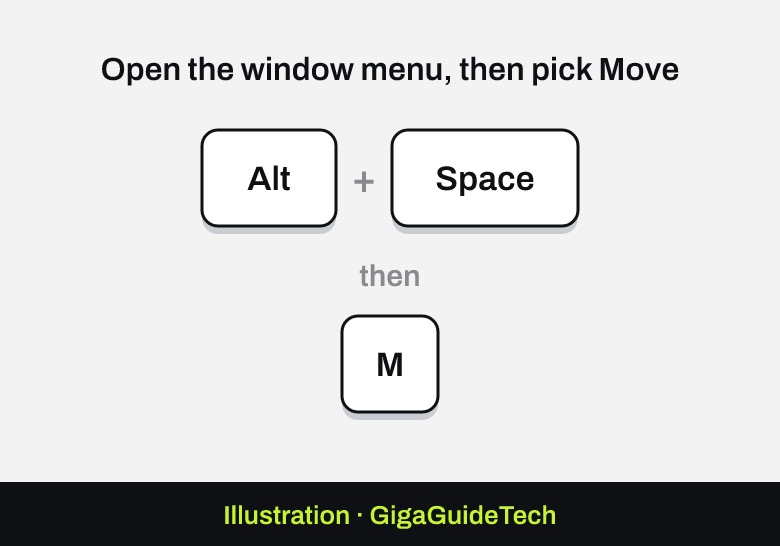
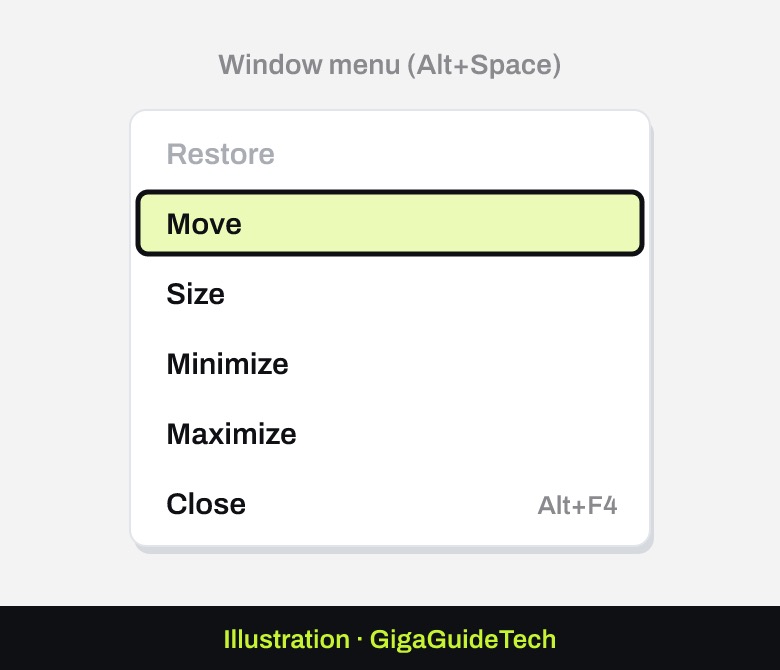
- Press Alt+Space to open the window’s system menu.
- Press M to choose Move.
- Press any arrow key once to lock the window to your cursor.
- Move your mouse (without clicking) to drag the window into view, then click or press Enter to place it.
Method 3: Shift + right-click the taskbar icon
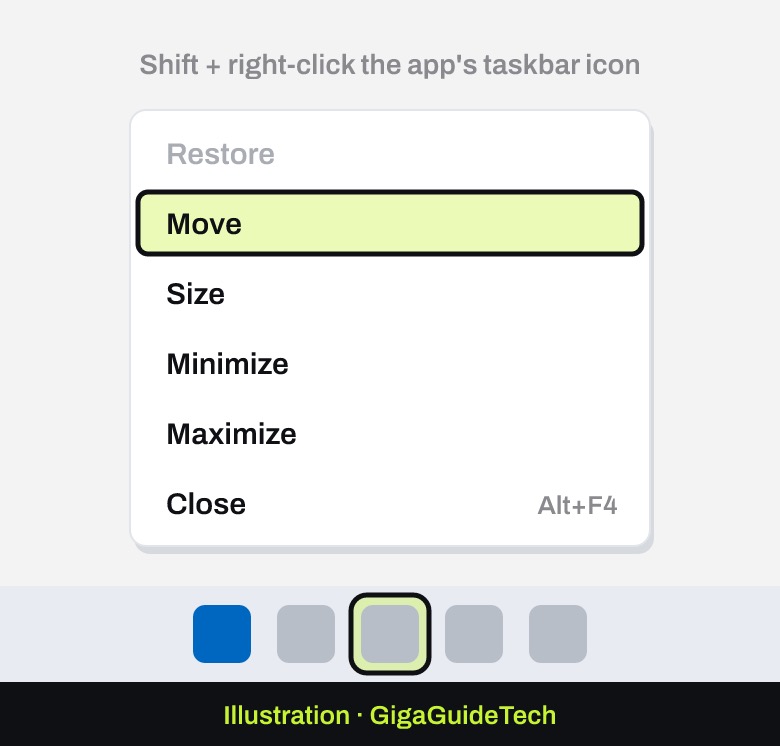
This is the move method Microsoft documents. On Windows 11, a plain right-click on a taskbar icon only opens the app’s jump list, so hold Shift while you right-click to get the window menu.
- Hold Shift and right-click the app’s icon on the taskbar.
- Select Move from the menu that appears.
- Move your mouse pointer toward the center of the screen.
- Use the arrow keys on your keyboard to shift the window into a visible area.
- Press Enter to confirm the new position, then resize the window if needed.
Method 4: Force the window with Task Manager
Use this when the window is completely invisible and the keyboard shortcuts above don’t seem to do anything.
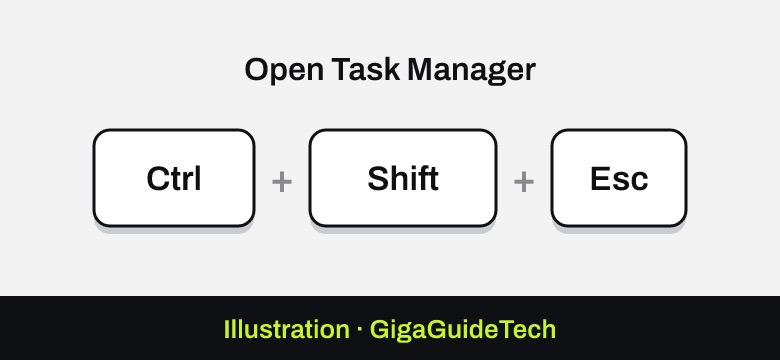
- Press Ctrl+Shift+Esc to open Task Manager.
- Under Processes, click the arrow next to the app to expand it, then right-click the window listed underneath and choose Maximize.
- If Maximize isn’t available, select End task, reopen the app, and immediately press Windows key + Up Arrow to force it to maximize on your current screen.
If it still doesn’t work
If the problem keeps happening across multiple apps, it may be caused by a leftover “ghost” display Windows still remembers from an old monitor setup.
- Press Win+R, type ms-settings:display, and press Enter.
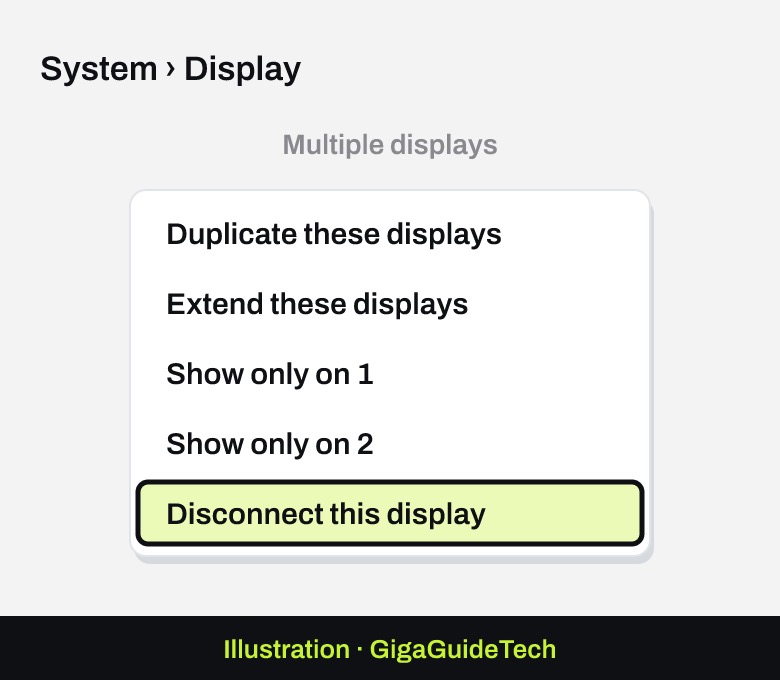
- Scroll to Multiple displays.
- If you see an extra numbered display that isn’t actually connected, click it and choose Disconnect this display.
FAQ
Why does this happen after I unplug a monitor?
Windows saves the exact screen coordinates where each app window was last placed. If that position was on a monitor you’ve since disconnected, the app can still try to open there, landing outside your visible display.
Will I lose my work if I use Task Manager to fix this?
Only if you choose End task on an app with unsaved changes. Using Maximize from Task Manager does not close the app or affect your data.
The bottom line
Most off-screen window problems in Windows 11 can be solved in seconds with Win+Shift+Arrow or the Alt+Space, M shortcut. Task Manager’s Maximize option is your backup when a window is completely invisible, and checking your display settings only becomes necessary if the issue keeps recurring across multiple apps.
Source: Microsoft Support