This guide is for anyone setting up Steam for the first time, whether you’re on Windows, macOS, Linux, or even a Chromebook. If you want to know how to use Steam to install the client, add games to your account, and keep a growing library tidy, this walkthrough covers the official steps and points out where Valve’s own documentation leaves gaps.
Before you start
- Check that your device meets the minimum requirements for your platform (listed below)
- Have a stable internet connection, since the client and most games download directly through Steam
- Know your email address, since you’ll need it to verify a new account
- If you’re troubleshooting an existing install, back up any save files stored outside Steam Cloud before deleting program folders
Installing Steam
Windows
As of January 1, 2024, the Steam Client only supports Windows 10 and later. You’ll need a 1.8 GHz processor, 4 GB of RAM, and 1 GB of available storage space.
macOS
Steam runs on recent versions of macOS. Check the current minimum requirements on Steam’s download page before installing, since Valve raises them over time.
Linux
Steam supports Ubuntu 20.04 or later, or SteamOS, with a 64-bit processor, 2 GB of RAM, and 150 MB of free space. 32-bit Linux distributions are no longer supported, so you’ll need a 64-bit distribution to use the Steam browser.
Chromebook
You’ll want at least an Intel i3 or Ryzen 3 CPU, 8 GB of RAM or more, and 128 GB of storage or more. To install directly from a Chromebook, open the Launcher, search for “Steam installer,” and select Steam installer under the Apps section.
- Go to the official download page at store.steampowered.com/about and download the installer (roughly 2 MB)
- Run the installer and follow the on-screen prompts
- Wait for Steam to finish installing the necessary files and configuring your system, which can take a few minutes depending on your hardware
Creating an account
After installation, Steam will prompt you to log in or create a new account. Setting one up is free and only requires an email address, a password, and your country of residence. Choose a strong password, since your email is also how you’ll recover the account later, and check your inbox for a verification email once you’ve signed up.
Buying and adding games
Steam’s own support pages focus mostly on redeeming and transferring games rather than the storefront checkout flow itself, but here’s what’s confirmed for getting titles into your library:
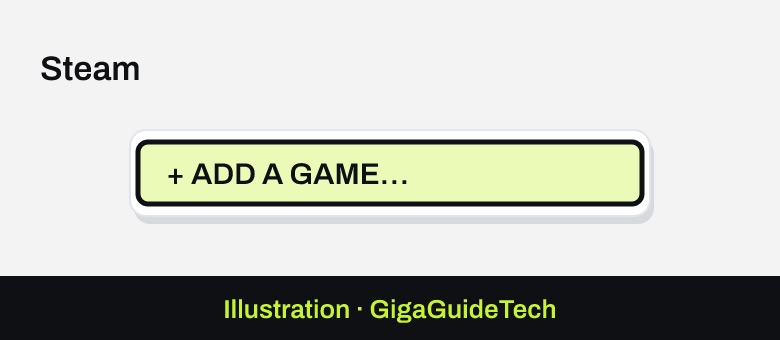
- Open the Steam client and click + ADD A GAME… in the bottom-left corner

Illustration: Steam Client - If you have a CD key, select Activate a Product on Steam… and follow the prompts
- If the game can’t be added with a key, choose Add a Non-Steam Game… instead
- To manage purchases remotely, sign into your profile on the Steam Community website or the Steam mobile app (iOS or Android), where you can view your games list and start downloads on a PC or Mac that’s running Steam
Receiving gifted games
A Steam gift is a one-time transfer, and once it’s redeemed and installed it becomes a permanent part of the recipient’s library — you can only gift new purchases, not games you already own. When you receive one, click the “1 new gift” notification, then choose Accept Gift or Decline Gift. Accepting adds the game straight to your Library, where clicking Install starts the download.
Managing your library
Steam’s library home shows game updates, recently played titles, and friends’ activity at a glance, and it’s worth learning the organization tools early so things don’t get messy as your collection grows.
- Drag and drop games onto the Collections button to create a new collection, or drop them into an existing one to reorganize on the fly
- Use dynamic collections to automatically sort games by store tags and filters instead of manually
- Add or remove shelves on your Library homepage, feature a favorite collection, and choose how it’s sorted
- Click and hold the center of a shelf header to drag and reorder shelves
- To remove a free-to-play game you no longer want, right-click it in the games list and choose Manage > Remove From Library
Sharing your games with family
In 2024 Valve replaced the old Family Library Sharing with Steam Families. A family can have up to six members, and most games in each member’s library can be played by the others, with their own saves and achievements. Only one person can play a given copy of a game at a time.
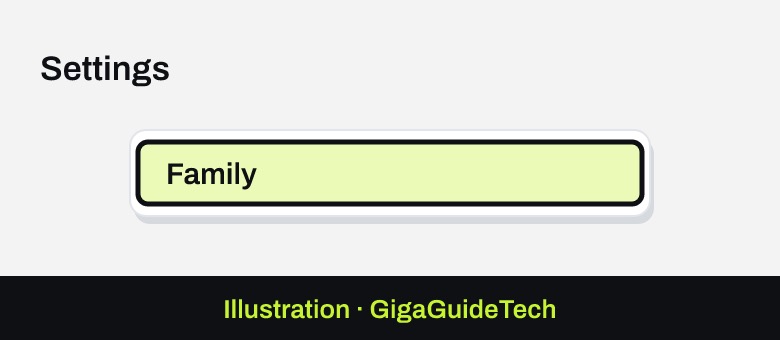
- Open Steam and go to Steam > Settings > Family.
- Create a family, or accept an invite from someone who already has one.
- Invite members from your Friends list and choose whether each one is an adult or a child.
Adults can set parental controls for children in the family, such as which games they can see.
If it still doesn’t work
- Error code 55 or an incomplete installation: Open Start > Run (Windows key + R) and enter C:\Program Files (x86)\Steam\bin\Steamservice.exe /Install, adjusting the path if Steam is installed elsewhere. This requires administrator privileges and may take a few minutes.
- Steam won’t launch, or you need a clean reinstall: Exit Steam completely, open C:\Program Files\Steam\, and delete every file except the Steamapps folder and Steam.exe. Restart your computer, then launch Steam.exe directly from the installation folder rather than from an old shortcut.
- Driver-related crashes or poor performance: Update your graphics drivers along with DirectX, PhysX, and Visual C++, which Valve recommends for resolving compatibility issues.
FAQ
Will uninstalling Steam delete my games?
Yes. Uninstalling Steam removes the games installed in its folder. To keep them, move the steamapps folder out of the Steam folder before uninstalling, then move it back after you reinstall.
Can I download new purchases on a different computer?
Yes. If you’re logged into the latest Steam client on another PC or Mac, you’ll see which games are installed and can install others from your library. Steam will also ask whether you want to download new purchases immediately when it detects a remote session.
Can I play a gifted game before I accept it?
No. A gift only joins your library and becomes installable after you click Accept Gift on the notification.
The bottom line
Getting Steam running is mostly a matter of meeting the system requirements for your platform and letting the installer do its job. From there, adding games is straightforward whether you’re using a CD key, a gift, or a remote download, and the library’s collections and shelves make it easy to keep things organized once you own more than a handful of titles. If you ever need a clean start, move your steamapps folder somewhere safe first so you don’t have to download your games again.
Sources: support.steampowered.com, events.nsv.nvidia.com, store.steampowered.com, Google Help, help.steampowered.com
Where to buy
- External SSD for Game Storage: check price on Amazon
- Gaming Mouse: check price on Amazon
- Gaming Headset: check price on Amazon
As an Amazon Associate I earn from qualifying purchases.