This guide is for anyone shopping for a new laptop who doesn’t want to end up with the wrong machine for the job. Knowing how to choose a laptop starts with figuring out what you’ll actually use it for, then matching that to the right processor, memory, storage and display — not just picking whatever is on sale. By the end, you’ll be able to walk into a store or browse a listing and know exactly which specs matter for you.
Before You Start
- Decide roughly how you’ll use the laptop most days: everyday browsing, schoolwork, creative projects, gaming, remote work, or AI-enhanced tasks.
- Set a budget range before you start comparing specs, since price heavily shapes which processors, screens and GPUs are realistic.
- Decide between Windows and Mac, since each platform has different upgrade rules, especially around memory.
- If you’re buying refurbished, confirm it carries a recognized certification and a clear warranty before handing over money.
Follow These Steps to Pick the Right Laptop
- Identify your primary use case first. Everyday users browsing, emailing and streaming need far less power than students juggling research and video calls, creators editing photos or video, gamers who need high frame rates, multitaskers who constantly switch apps, or AI enthusiasts running local AI workflows.

Photo: Andrea Piacquadio / Pexels - Match the processor to that workload. A mid-range chip like an Intel Core i5/i7 or AMD Ryzen 5/7 covers most everyday, student and creator needs. If you plan to use AI-enhanced features, look for a recent chip such as AMD’s Ryzen AI 300 Series, Intel’s Core Ultra 200V Series or Qualcomm’s Snapdragon X series, or newer. Avoid outdated chips like Intel 11th Gen or AMD Ryzen 3000.
- Decide how much RAM you actually need. 8GB is enough for light browsing and streaming, but photo or video editing, gaming, or heavy multitasking call for 16GB or more; dedicated video editing often wants 24–32GB. On many laptops the memory is soldered to the board, so plan on the amount you buy being the amount you keep.
- Pick the right storage type and capacity. Always choose an SSD over an older HDD for speed and reliability. A 256GB SSD is fine for light, cloud-heavy use, while 512GB or more is recommended for creative work, large game libraries, or AI assets — some gaming and editing setups benefit from 1TB to 2TB or more.
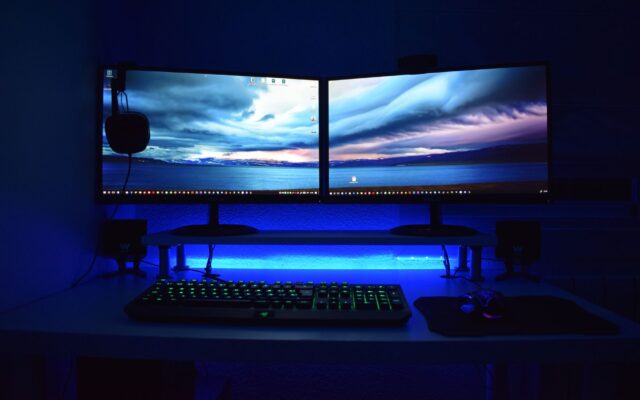
- Evaluate the display. Look for at least 1080p (Full HD) resolution, a 120Hz or higher refresh rate if you game, and a color-accurate panel if you edit photos or video; creators generally benefit from QHD or 4K. For a deeper breakdown of refresh rate, size and panel type, our guide to choosing a gaming monitor covers the same display fundamentals in more depth. Screen size is mostly a tradeoff between portability (13–14 inches) and workspace (15–17 inches).
- Check whether you need a dedicated GPU. Integrated graphics handle everyday tasks fine, but creators and video editors should look for a discrete GPU such as Nvidia GeForce, AMD Radeon, or Intel Arc, and gamers need a high-end dedicated GPU. If you’re comparing specific graphics cards, knowing how much VRAM a card has is a quick way to judge whether it fits your workload.
- Consider portability and battery life. If you move around a lot, look for 8 or more hours of real-world battery life rather than optimistic marketing numbers, and remember that thinner, lighter laptops often trade off screen size and cost.
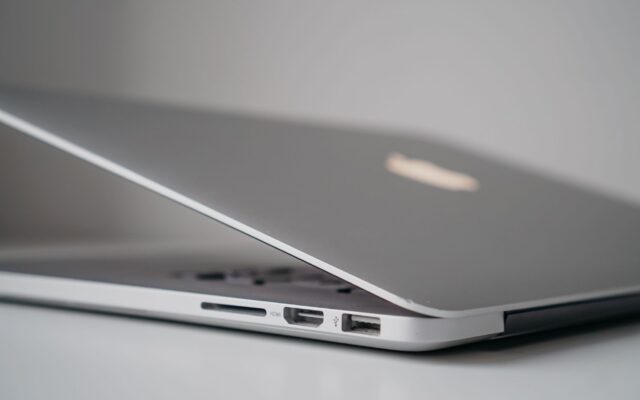
- Check the ports and wireless standards. A solid mix includes USB-C/Thunderbolt, USB-A, HDMI, Wi-Fi 6 and Bluetooth 5.0; missing ports or outdated wireless standards can slow you down and force you to buy adapters later.
Photo: dlxmedia.hu / Pexels - Assess build quality and ergonomics. A sturdy chassis, comfortable keyboard and responsive trackpad matter a lot if you’ll be typing or working on the laptop all day.
Photo: MART PRODUCTION / Pexels - Set your final budget tier based on everything above. Under $600 covers basic functionality for casual use; $600–$1,000 adds better displays, battery life and multitasking power for students and professionals; $1,000+ brings premium builds, faster processors, high-res screens and stronger AI capabilities for gamers, creators and power users.


If You’re Considering a Mac
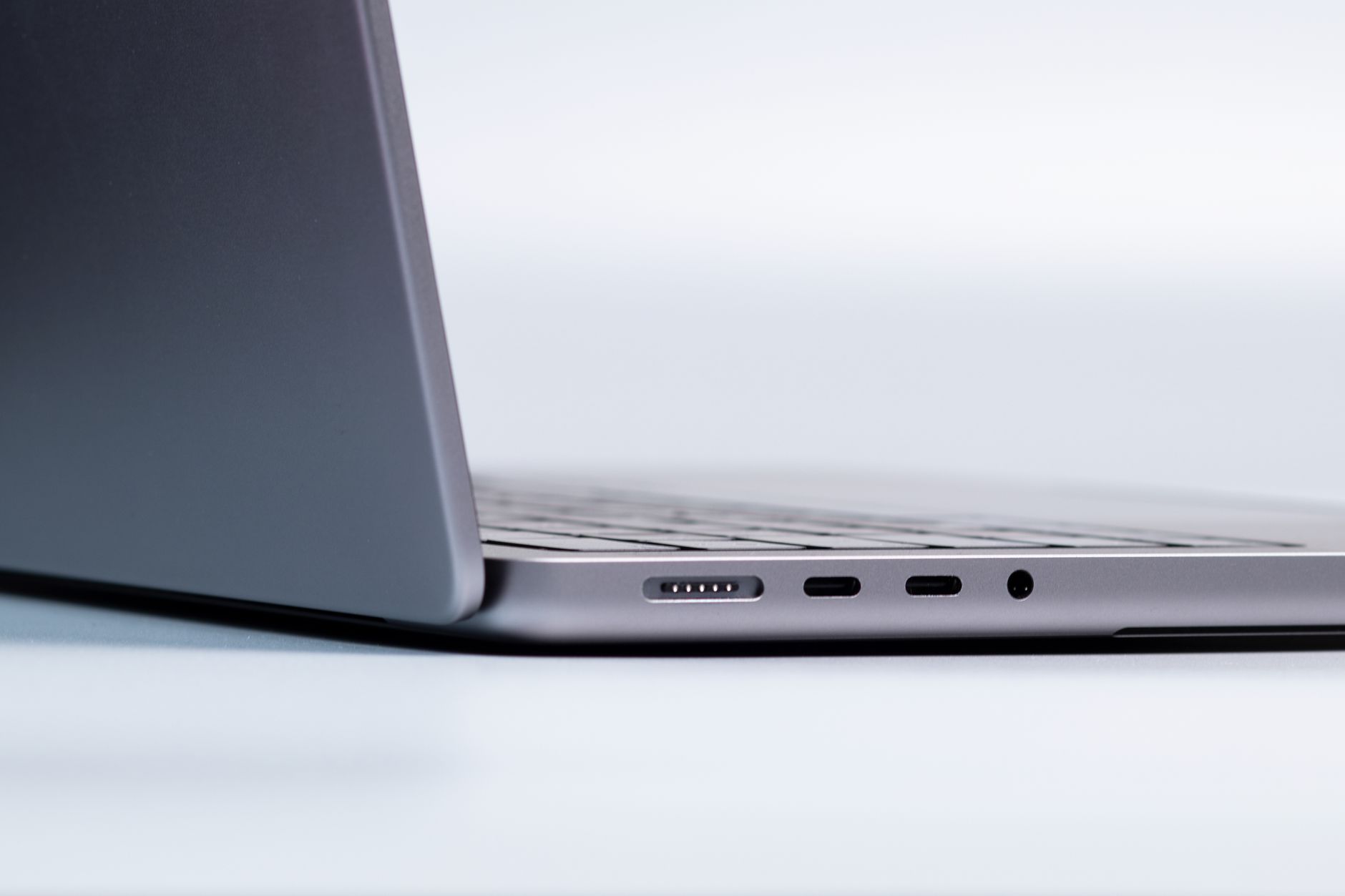
No Apple Silicon Mac — desktop or notebook — lets you add RAM after purchase, so buy as much memory as you can afford up front. A common rule of thumb is to avoid going below 16GB of RAM and 512GB of storage, even if a cheaper configuration looks tempting during a sale. Apple’s current laptop lineup has three lines: the entry-level MacBook Neo, the thin-and-light MacBook Air and the higher-end MacBook Pro. If you’re leaning toward the top of the range, read about the newest MacBook Pro models before deciding.
If You’re Considering a Windows Laptop
Windows laptops offer more configuration flexibility across brands and price points, from budget machines under $600 to premium creator and gaming laptops over $1,000. Because RAM and storage policies vary by model, confirm each listing’s exact specs rather than assuming you can upgrade later, since many modern Windows laptops also ship with soldered memory.
If You’re Still Not Sure
If you’ve gone through the steps above and still can’t decide, use the official manufacturer tools built for exactly this situation. Apple offers a “Help me choose” quiz at apple.com/mac/best-mac that gives personalized Mac recommendations based on your habits. Microsoft offers a similar “Help me choose” quiz at microsoft.com/en-us/windows/help-me-choose, along with a dedicated PC and Laptop Buying Guide that lets you filter by intended use to see matching specs and devices.
Also double-check the common pitfalls: don’t choose a laptop on price alone if it means sacrificing performance or workflow compatibility, don’t ignore port and wireless needs, and don’t skip the warranty and return policy, especially for gift purchases. If you’re considering a refurbished laptop to save money, make sure it’s Microsoft Certified Refurbished (or the equivalent for other brands) and comes with a clear, documented warranty.
FAQ
How much RAM do I actually need in a laptop?
8GB is enough for everyday browsing, streaming and light productivity. For AI-enhanced workflows, creative projects or heavy multitasking, 16GB or more is recommended, and gaming can call for anywhere from 16GB up to 64GB depending on the games. Video editing often benefits from 24–32GB.
Is it safe to buy a laptop with only 8GB of RAM?
It’s fine for light, everyday use, but it’s risky if you expect your needs to grow, because many laptops — especially Apple Silicon Macs — don’t allow you to add RAM after purchase. If there’s any chance you’ll edit video, game, or run AI tools later, buy more RAM up front rather than assuming an upgrade path exists.
What screen size should I get?
It depends on your priorities: 13–14 inches favors portability, 14–15 inches is a common balance for standard work, and 15–17 inches gives you maximum screen space at the cost of weight and battery life.
Are refurbished laptops a good way to save money?
They can be, as long as the device is certified refurbished (such as Microsoft Certified Refurbished) and comes with a clear warranty. Avoid refurbished deals that don’t specify certification or return policy, since that’s where buyers typically run into trouble.
Sources: Apple, Microsoft Support
Where to buy


As an Amazon Associate I earn from qualifying purchases.