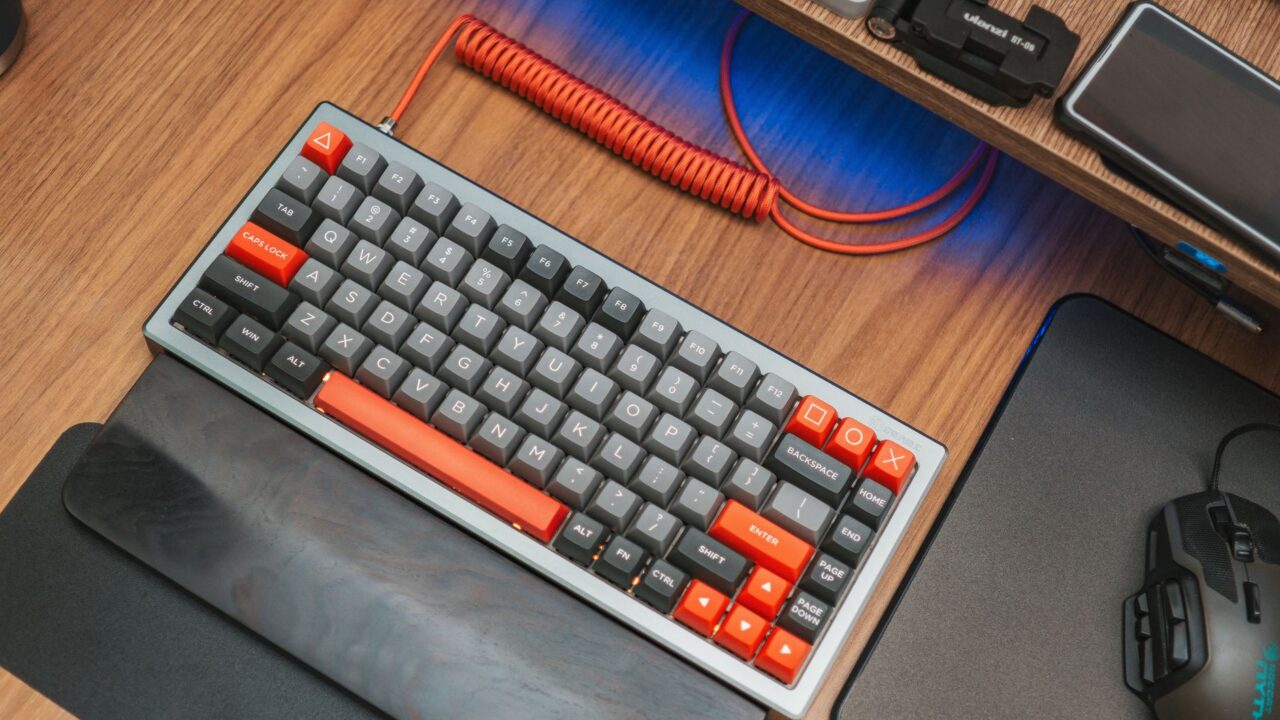
A keyboard is the part of your PC you touch the most, so it’s worth choosing one that fits how you work and play. This guide walks you through the decisions that actually matter: membrane or mechanical, the layout size, the switch type, build quality, connectivity and budget. TechRadar’s keyboard reviewer puts it simply: underneath all the online noise, choosing a keyboard still comes down to a few simple decisions.
Step 1: Decide if you want a mechanical keyboard
Most standard keyboards use rubber dome switches under the keys. Mechanical keyboards use an individual mechanical switch for each key, which gives clearer feedback when a key registers. According to Tom’s Guide, mechanical switches are often rated for millions of keystrokes, last much longer than membrane keyboards, and let you replace individual keys or switches. Many people also find them more comfortable for long typing sessions.
The trade-offs: mechanical keyboards usually cost a bit more, are often louder, and can take some getting used to. If you just want a quiet keyboard for email and browsing, a standard keyboard can be enough. If you type a lot, game or code, the rest of this guide will help you pick a mechanical one.
Step 2: Pick a layout size
“Size” here means the layout, or which keys the keyboard keeps. Think about your desk space and whether you use the number pad.
| Layout | What you keep | Good for |
|---|---|---|
| Full-size (100%) | Everything, including the number pad | Spreadsheets and anyone who types numbers often |
| 96% (“1800”) | The number pad, with keys squeezed closer together | A number pad in a little less space |
| Tenkeyless (TKL) | Function row and navigation keys, no number pad | More room for your mouse |
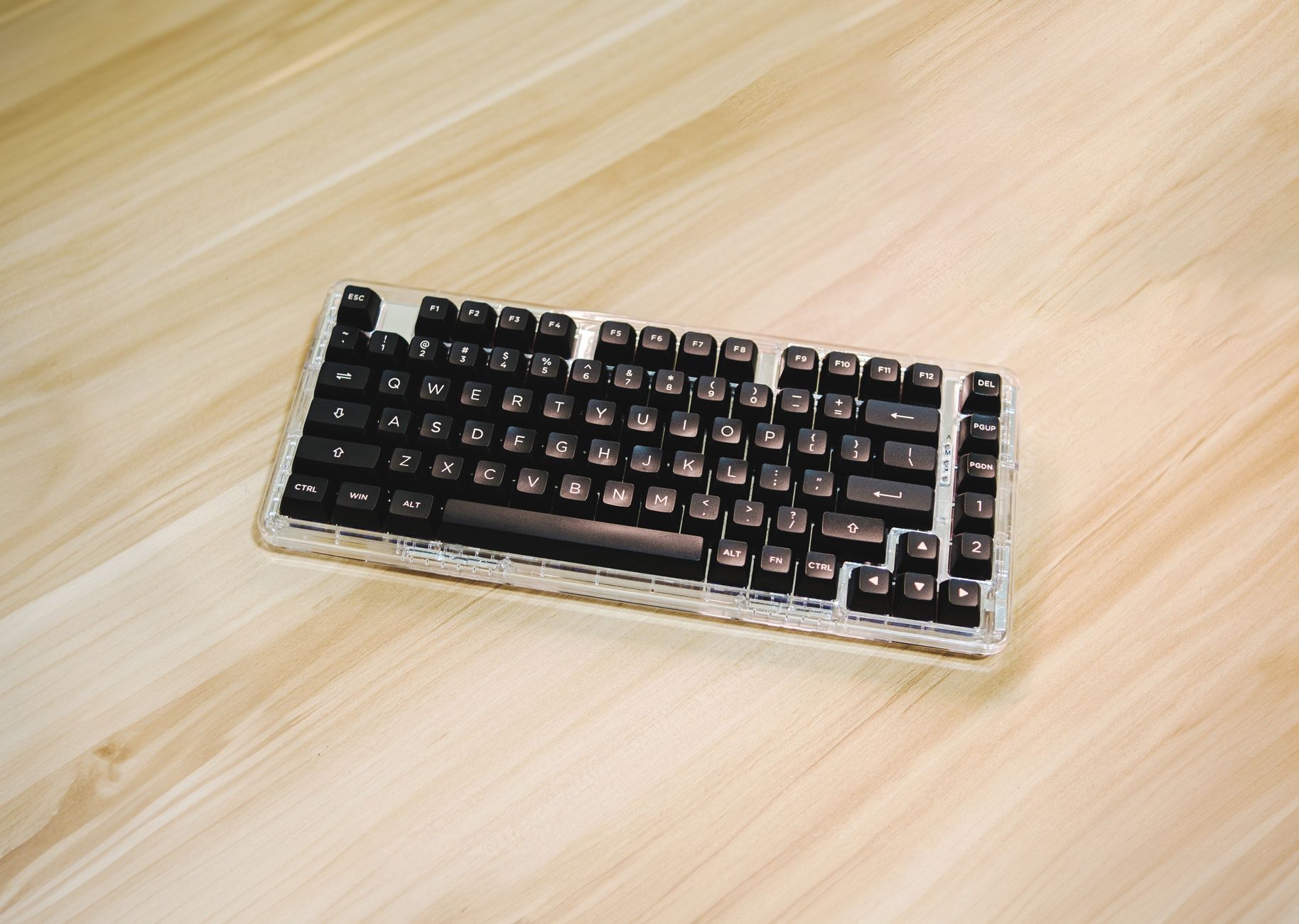
| 75% | Function row and arrows in a tighter layout | A strong middle ground, according to TechRadar |
| 65% | Arrow keys and a few navigation keys, no function row | Saving space while keeping arrows |
| 60% and smaller | The main typing keys; other keys move to layers | Gamers who want maximum mouse space, minimalists |
TechRadar’s reviewer considers arrow keys non-negotiable for productivity work and calls the 75% to TKL range a strong middle ground. Tom’s Guide notes the smallest layouts are ideal for portability but take some getting used to.
Step 3: Choose a switch type
The switch decides how each key feels and sounds. There are three main types:
- Linear: smooth all the way down, with no bump or click. Gamers like them for fast, light presses.
- Tactile: a small bump partway down tells you the key registered. They’re quieter than clicky switches and popular with typists.
- Clicky: a tactile bump plus an audible click. Satisfying feedback, but the loudest option.
Switch colors used to tell you what to expect. As TechRadar explains, a Red switch was usually light and linear, Black a heavier linear, Brown softly tactile and Blue tactile and clicky. Today, switches are named after everything from planets to birds, so colors aren’t a reliable guide anymore.
The best way to choose is to try them. TechRadar recommends ordering a switch tester, a small board with a range of switches, and paying attention to how each one feels as you press it, rather than hammering the keys.
Step 4: Match the keyboard to how you’ll use it
- Gaming: linear switches for quick presses, plus N-key rollover (NKRO) with anti-ghosting, so every key registers even when you press several at once. Some gaming keyboards add programmable macro keys.
- Typing: tactile switches are a good mix of feedback and comfort. For long sessions, look at ergonomic designs like split keyboards or adjustable tenting.
- Programming: tactile or light linear switches, plus customizable layouts and programmable layers for quick access to symbols and shortcuts.
If you’re building a gaming setup from scratch, see our budget gaming PC build and how to choose a gaming monitor.
Step 5: Look for hot-swappable switches
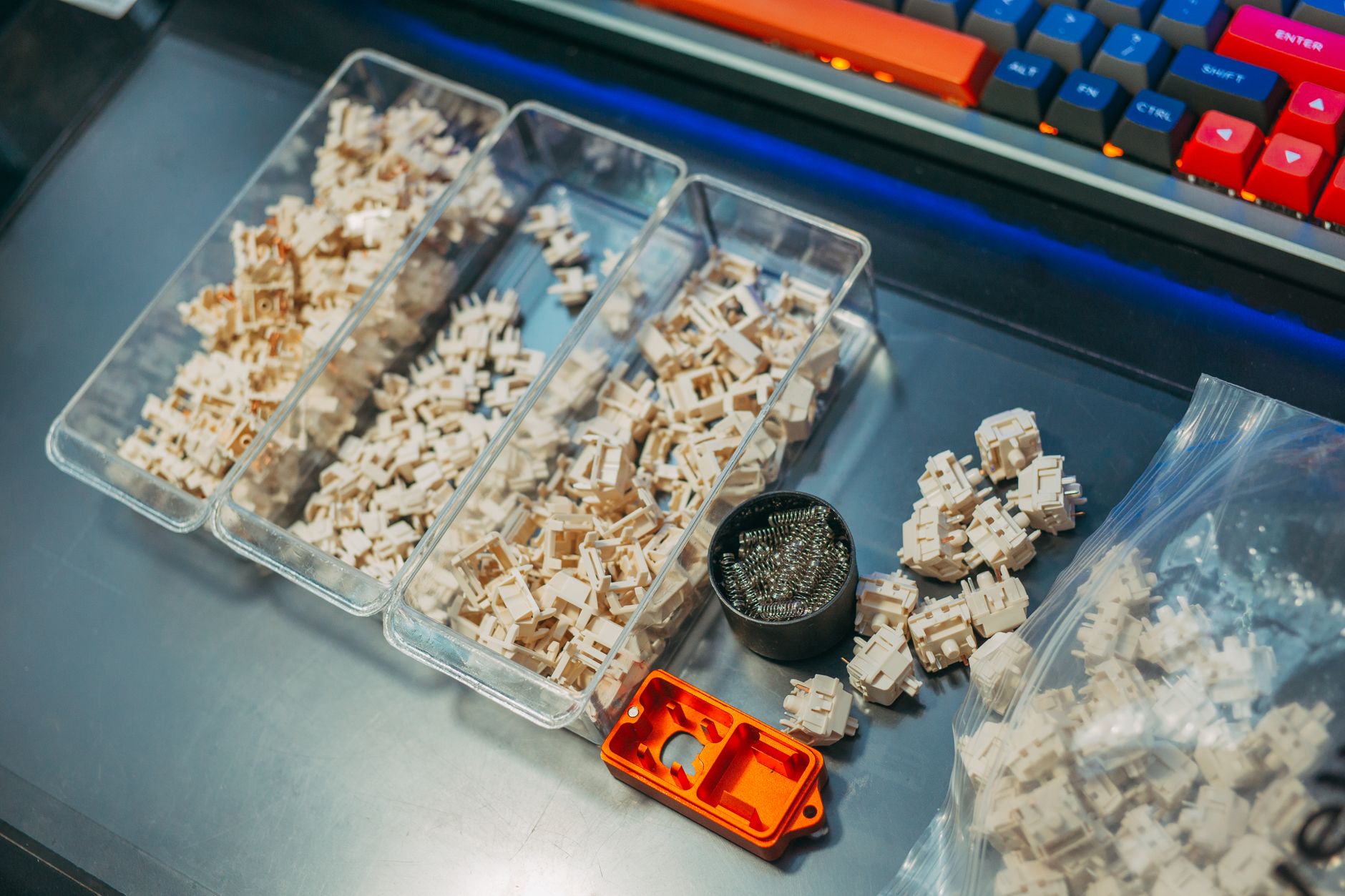
A hot-swappable keyboard lets you pull switches out and push new ones in without soldering. TechRadar calls it a key piece of advice, since it gives you more freedom to change your mind later, and Tom’s Guide notes the feature is becoming common even on budget keyboards. If you swap switches yourself, line up the pins with the holes, push straight down until it clicks, and buy a few spares in case you bend a pin.
Step 6: Check the build quality
- Frame: aluminum is more rigid and durable than plastic. TechRadar says an aluminum build adds rigidity, dampens unwanted noise and feels more solid.
- Keycaps: PBT keycaps are durable and resist turning shiny. ABS keycaps are more common but wear faster.
- Sound and flex: the frame should have minimal flex, and the case shouldn’t rattle or ping. Some sound dampening helps.
- Cable: a detachable cable is easier to replace and to travel with.
Step 7: Pick a connection
Tom’s Guide lists three options. A USB wired connection is the most reliable and has no input lag, which makes it great for gaming. Bluetooth is the most convenient for laptops and tablets. A 2.4GHz wireless dongle is faster than Bluetooth and better for gaming. If you switch between a desktop, a laptop and a tablet, look for a keyboard that supports several devices and all three connection types. Moving between computers? Our laptop buying guide covers what to look for there.
Step 8: Set your budget
TechRadar suggests going in with a list of must-have features, like PBT keycaps, good wireless connectivity and a sturdy chassis. Here’s how its reviewer sees the price tiers:
- Affordable (around $60 to $80): plenty of keyboards pack in hot-swappable switches, wireless connectivity and RGB lighting, but some are mostly plastic and feel cheap. Research carefully and favor boards with a good reputation.
- Mid-range (low triple digits): options like Keychron’s Q1 Pro add a machined aluminum chassis and advanced software support.
- Custom and boutique: fully custom builds cost more and are better for people who are already into the hobby than for a first keyboard.
Extras worth considering
Tom’s Guide lists features that can make a difference in daily use: backlighting (from single-color to per-key RGB), software to remap keys and program macros, dedicated media controls, a USB passthrough port, and onboard memory that saves your settings so they work on any computer.
Quick checklist
- Mechanical or standard: how much do you type or game?
- Layout: do you need the number pad and arrow keys?
- Switch: linear, tactile or clicky? Try a switch tester if you’re unsure.
- Hot-swappable: yes, if you want to change switches later.
- Build: aluminum frame, PBT keycaps, no rattle.
- Connection: wired for gaming, wireless for a clean desk or several devices.
- Budget: decide your must-have features first.
Sources: TechRadar: How to choose your first mechanical keyboard, Tom’s Guide: 7 things to know when choosing your first mechanical keyboard
Where to buy


As an Amazon Associate I earn from qualifying purchases.