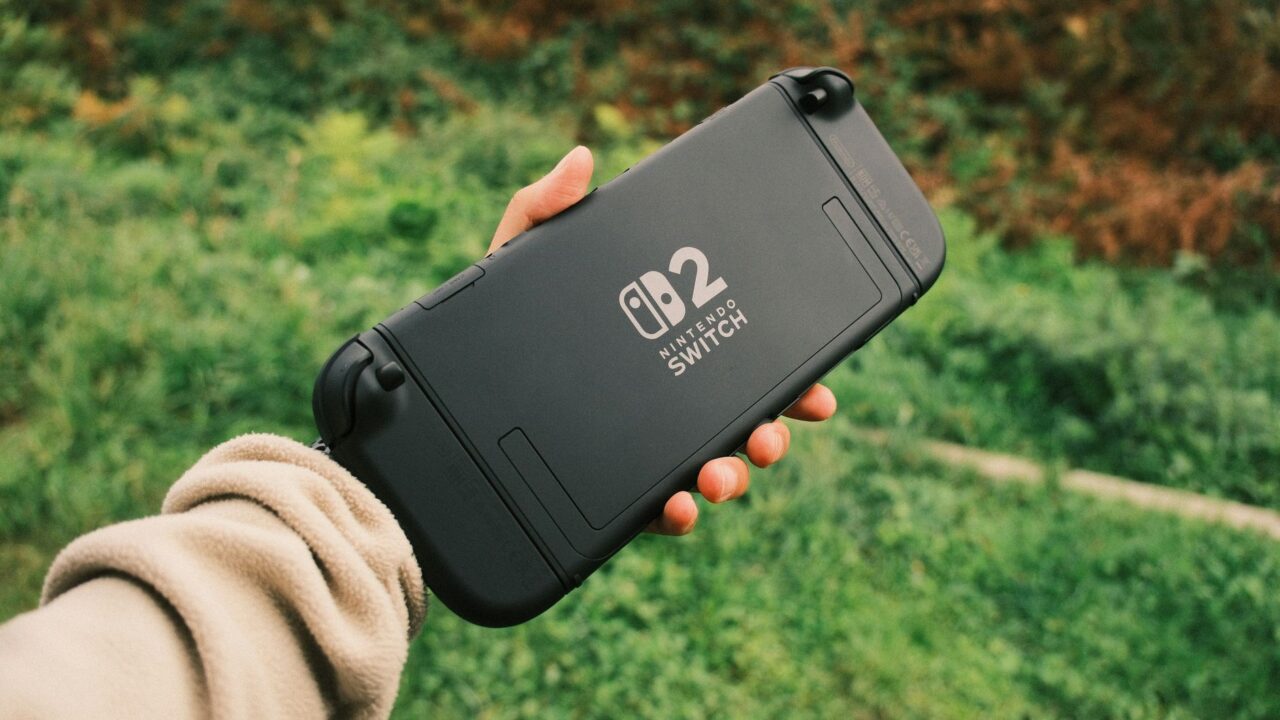
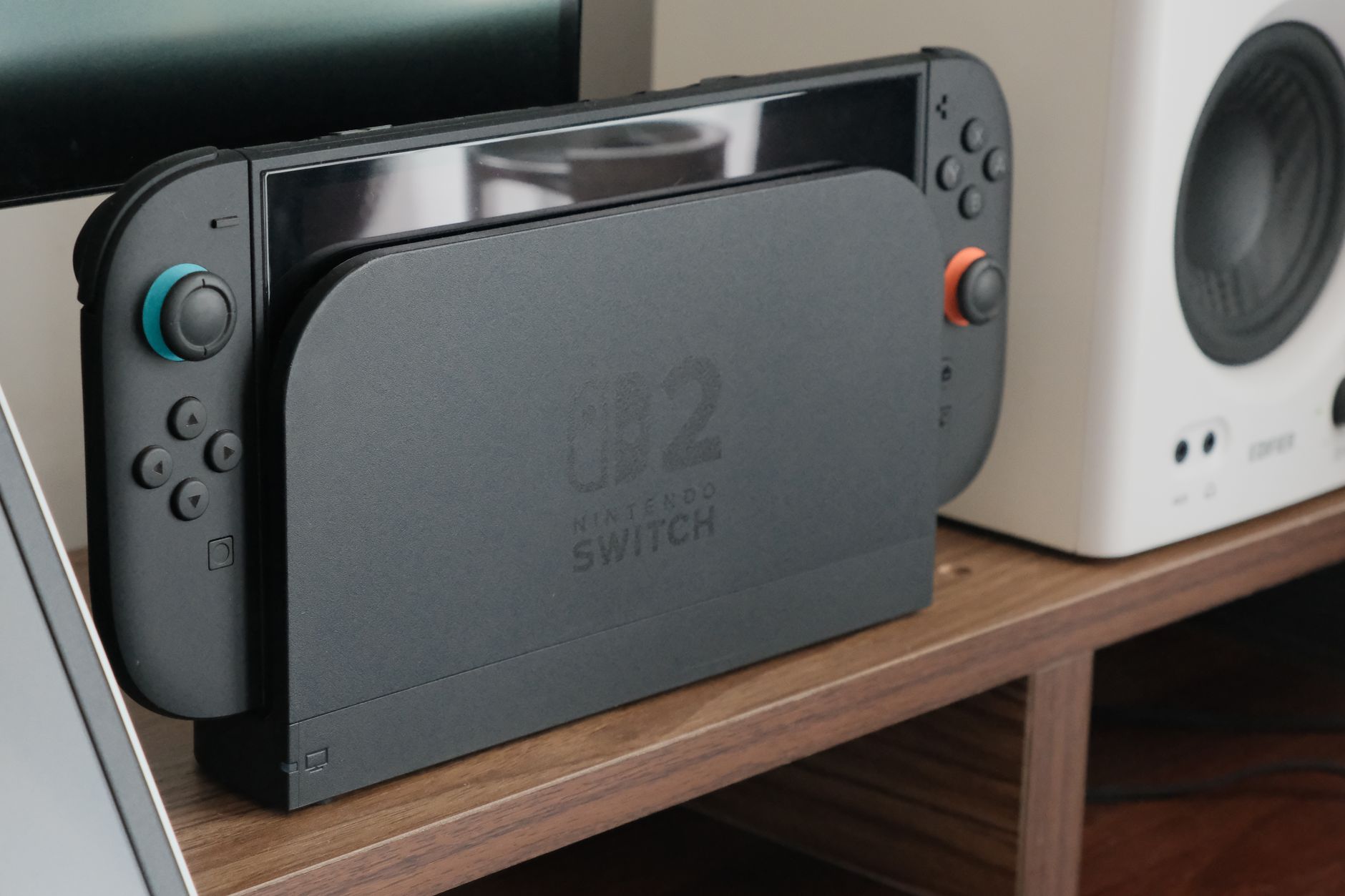
The Nintendo Switch 2 comes with 256GB of built-in storage, The Verge notes, and big games fill it faster than you’d think. The easy fix is a memory card, but not just any card: the Switch 2 only works with a newer, faster type called microSD Express. Here’s which card to buy, how to install it and how to move your games onto it, using Nintendo’s own instructions.
Step 1: Get the right card (microSD Express only)
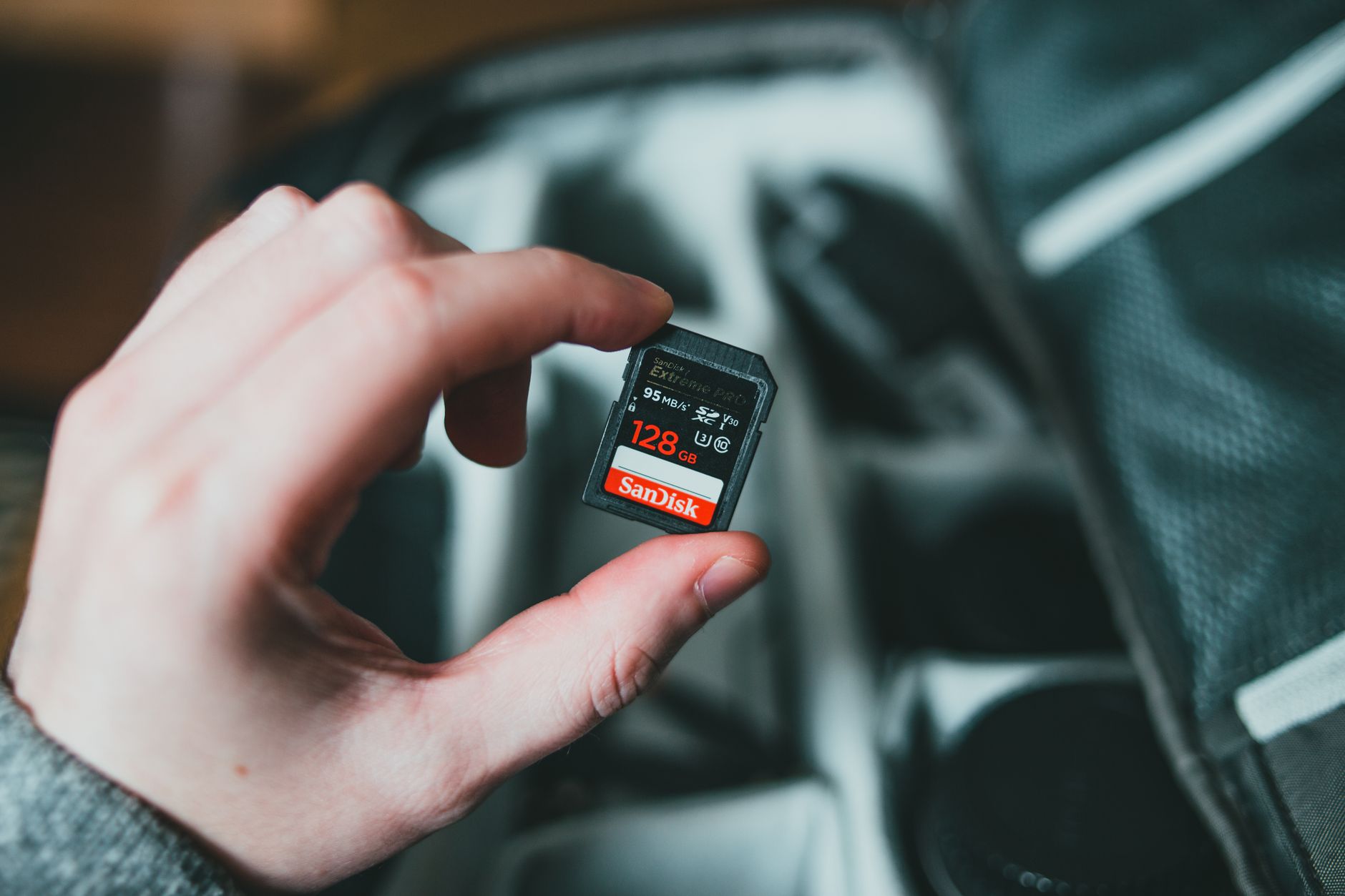
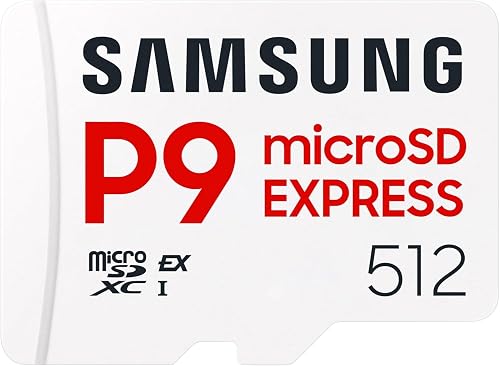
This is where most people go wrong. Nintendo says plainly: “MicroSD cards that do not support SD Express cannot be used.” That means the regular microSD card from your original Switch, phone or camera won’t work for games on a Switch 2, even though it looks exactly the same.
- Check the package. Look for “microSD Express” in the product name. If the name doesn’t say Express, it’s the older type.
- Pick a size. The Verge thinks 256GB will be enough for most players. For reference, it lists the Zelda: Ocarina of Time remake at 24.9GB and The Witcher 3 Remastered at about 50GB. If you buy a lot of big games, a 512GB card gives you room to grow.
- Expect to pay a bit more. microSD Express cards cost more than regular microSD cards because they’re faster, but prices often drop around sales like Black Friday.
Step 2: Insert the card
According to Nintendo’s support page:
- Turn off the console: hold the POWER button for at least three seconds, then select Power Options > Power Off.
- Gently swing open the adjustable stand on the back to reveal the microSD Express card slot.
- Hold the card with the label facing away from the console.
- Push it straight into the slot until it clicks into place.
Nintendo says you can also insert a card while the console is on, but you’ll need to restart it before the card works.
Step 3: Move games to the card
New games you download can go to the card, but games already on the console stay put until you move them. Nintendo explains how:
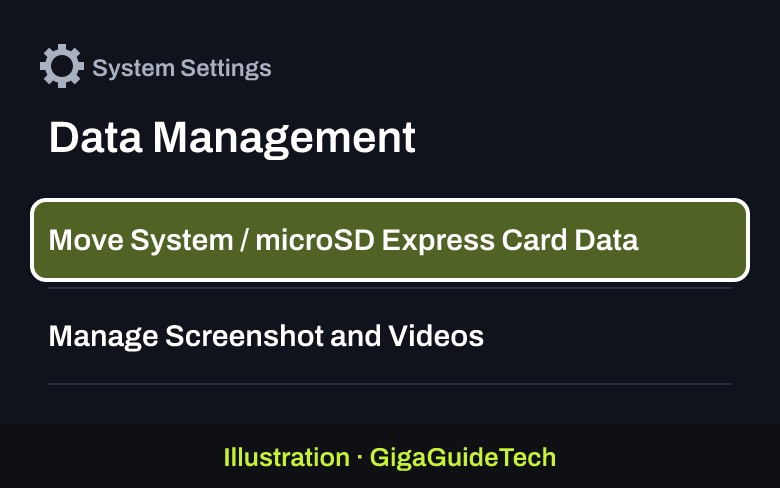
- Select System Settings from the HOME Menu.
- Scroll down and select Data Management.
- Select Move System / microSD Express Card Data.

Illustration: Switch 2: System Settings > Data Management > Move System / microSD Express Card Data - Choose the games you want to move, then select OK.
Two things to know: your save data always stays in the console’s built-in memory, along with some update data, so it can’t be moved to the card. And Nintendo notes this isn’t a setting for where future data goes, so a game’s later updates may still land in the other location.
Step 4: Bring over your old screenshots (optional)
If your original Switch’s card is full of screenshots and videos, you can copy them to the Switch 2. Nintendo says to put the old card in and go to System Settings > Data Management > Manage Screenshot and Videos > Import from a Nintendo Switch microSD Card, then follow the instructions on screen. This is the one job an old microSD card can still do on a Switch 2.
Upgrading to a bigger card later
If you fill up your first card, you can copy everything to a bigger one. Nintendo’s guide for that uses a Windows PC, and it warns the copy may not work correctly on other computers, like a Mac. Keep the old card untouched until the new one works. If something goes wrong, you can always download your games again from the Nintendo eShop.
How to remove the card
Turn off the console first, open the stand, then push down on the card until it clicks and slide it out, Nintendo says. Don’t pull it out while the console is on.
Thinking about a different console? See Xbox Series X vs Series S, or learn how to share games on PS5 and Xbox.
Where to buy

As an Amazon Associate I earn from qualifying purchases.
Sources: Nintendo Support (insert a card, move data, start using the card, transfer between cards), The Verge