Signal, the encrypted messaging app, now blocks screenshots by default, and the reason is AI. Assistants like Apple’s Siri AI and Google’s Gemini can read what’s on your screen to help answer questions, which means a private chat could end up on a company’s servers. Signal’s new protections, announced this week, stop that from happening inside its app, at least on phones. Here’s what changed, where it falls short and how to turn it off if you need screenshots.
What Signal changed
- On iPhone (iOS 27): a new Block Siri AI setting is on by default, Engadget reports. It also blocks screenshots inside Signal.
- On Android: Signal turns on its existing Screen security setting automatically when it detects an AI assistant trying to read your screen, according to Android Authority. Screen security also blocks screenshots.
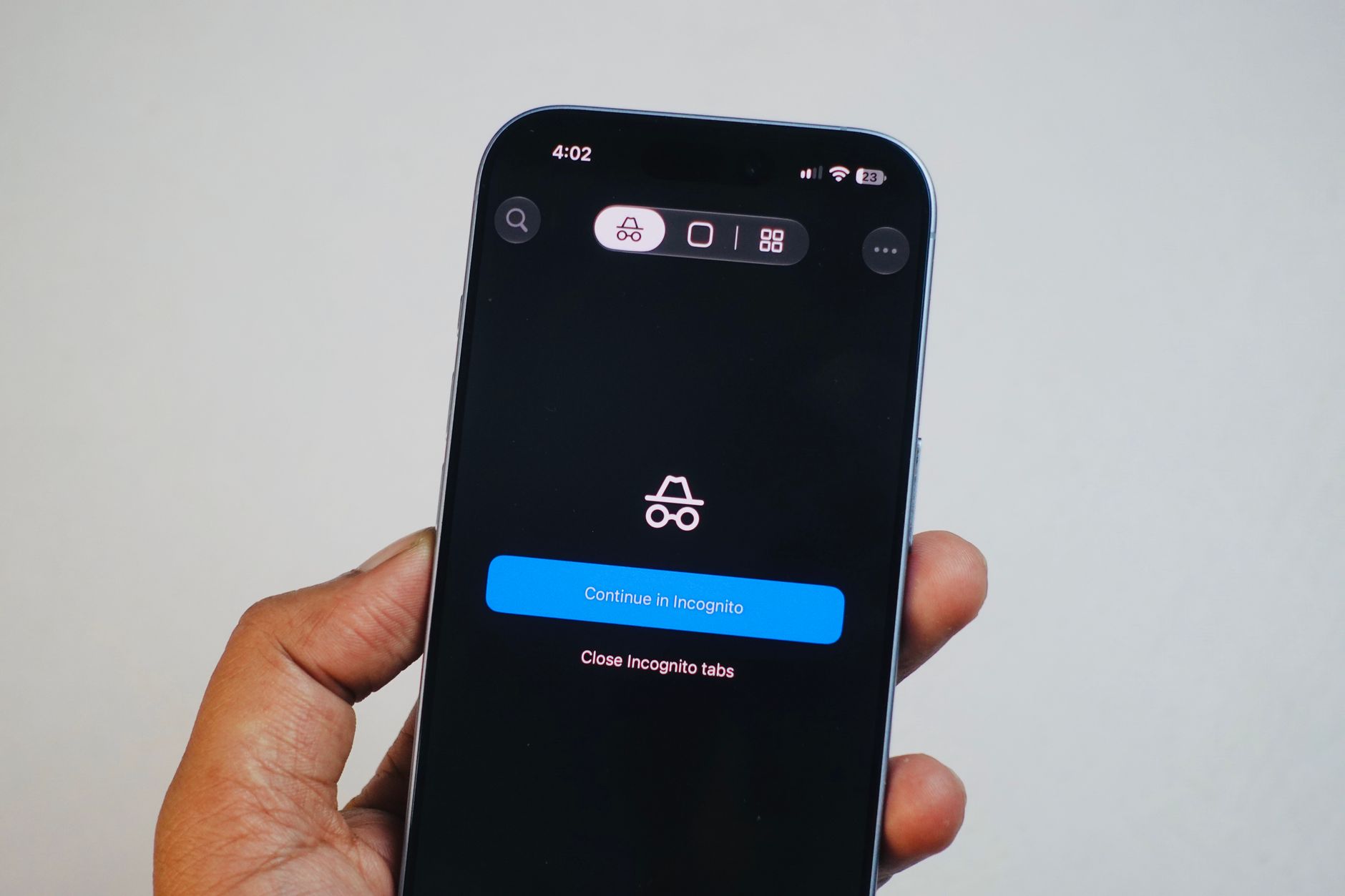
- You can turn it off. On both platforms, Signal shows a prompt offering to switch the protection off when it detects a screenshot (iPhone) or an AI assistant reading the screen (Android).
Signal explains on its blog why the Android version works this way: on many phone brands it can’t reliably tell when someone tries to take a screenshot, so it focuses on detecting AI assistants instead.
Why Signal is doing this
Signal’s end-to-end encryption protects messages while they travel between phones. But once a message is on your screen, an AI assistant can capture it, and that copy is outside Signal’s control. Android Authority notes that Gemini can already analyze your screen without you sharing a screenshot. Engadget adds that Signal is also worried about third-party AI agents, like Meta’s Muse, which Reuters caught reading Signal messages through notifications on Android and accessibility permissions on Mac.
It’s not the first time. Last year, Signal blocked Microsoft’s Recall feature from taking snapshots of chats on Windows 11.
Where it falls short
- The other person matters. If someone you’re chatting with turns the protection off, an AI on their phone can still read your messages, Engadget points out.
- No protection on Mac. Signal says on its blog that it can’t reliably block screenshots on macOS, so Siri AI isn’t blocked there.
- Not every Android phone is covered, and blocking screenshots doesn’t stop AI agents that read notifications or files.
That’s why Signal is calling on Apple, Google and Microsoft to give app makers a standard way to keep AI out of their apps. It told Engadget it’s talking with Apple and Google and is cautiously optimistic.
What this means for you
- If you use Signal, you don’t need to do anything. The protection is on by default, which is the safest choice for most people.
- Need a screenshot for a good reason? Signal will offer to turn the protection off when you try. Consider turning it back on afterward.
- Think about your other apps, too. Banking, health and work apps can show sensitive information on screen. Before you let an AI assistant read your screen or control your apps, check what it can access, and only give it the permissions it needs.
- Remember that privacy is shared. Even with every setting on, what you send can be seen on the other person’s device. For very sensitive chats, agree with the other person to keep protections on.
Google’s assistant is also getting more control of your computer: read how Gemini on Mac can now use your apps, and see how to check which apps have Full Disk Access on your Mac.
Sources: Engadget, Android Authority, Signal