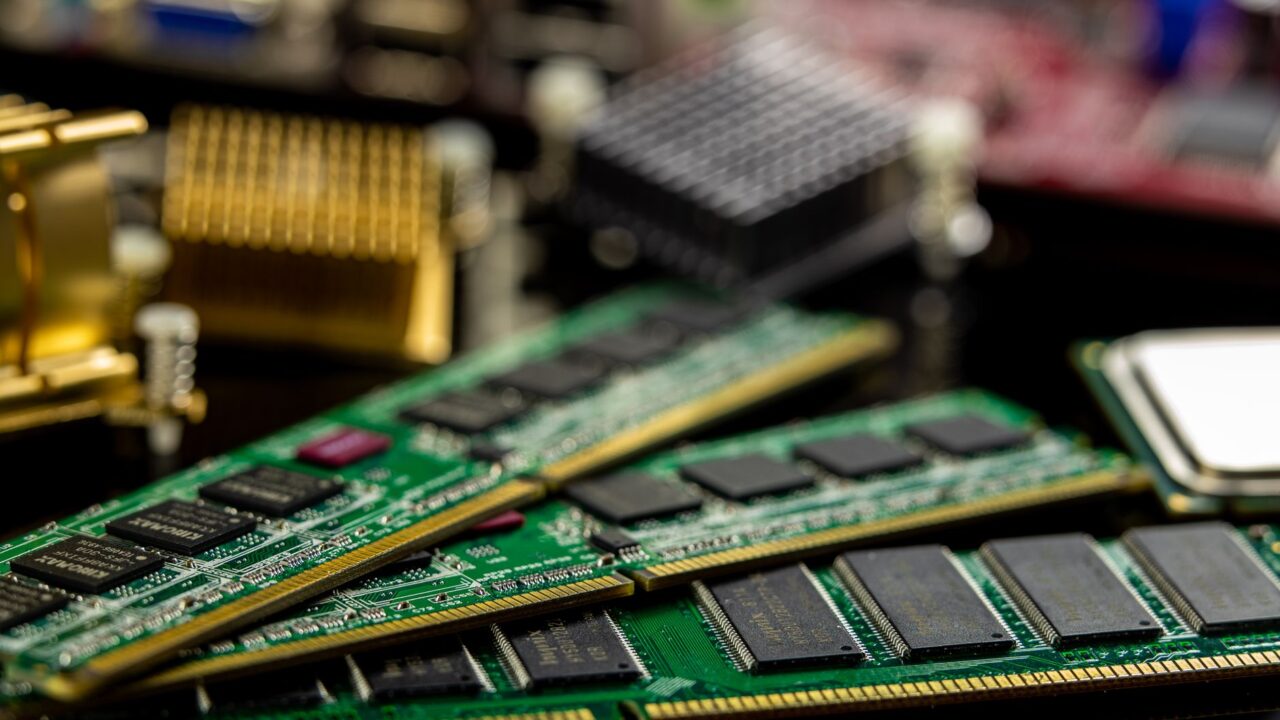
This guide is for anyone who wants to check what RAM your PC has before buying more memory, troubleshooting slowdowns, or simply confirming a new upgrade was installed correctly. We’ll cover Windows, Mac, and Chromebook, and explain how to find out whether your specific machine can even accept more memory in the first place.
Before you start
- Know which operating system you’re running (Windows 10, Windows 11, macOS, or Chrome OS), since the steps differ.
- No data backup is required just to check your RAM — these are read-only diagnostic steps.
- If you plan to physically open a desktop or laptop to inspect or swap memory modules later, power the machine down completely and unplug it first.
- Have your computer’s exact model name handy, since that’s what you’ll need to look up official upgrade specifications from the manufacturer.
How to check RAM on Windows
Windows 10 and Windows 11 (Settings app)
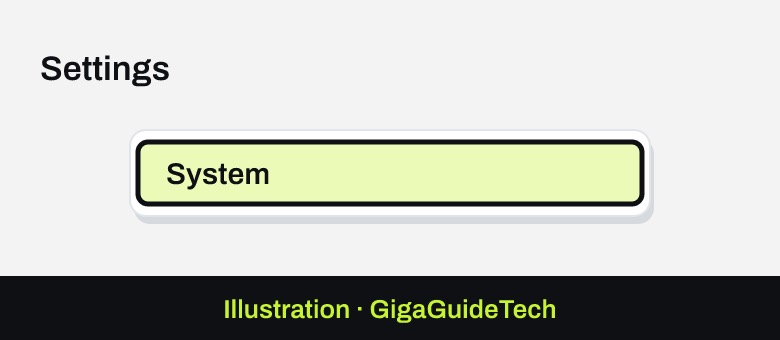
- Select Start, then open Settings.
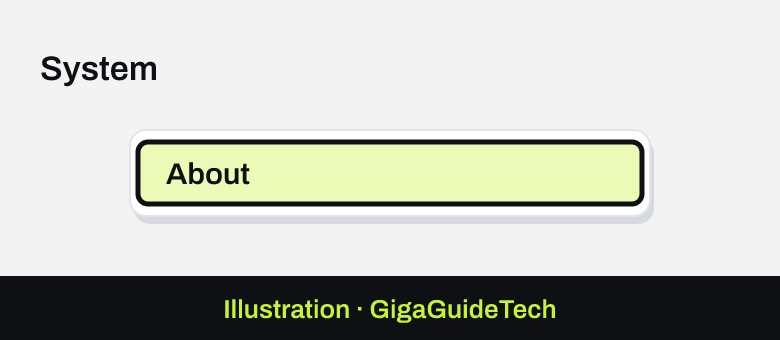
- Choose System > About.

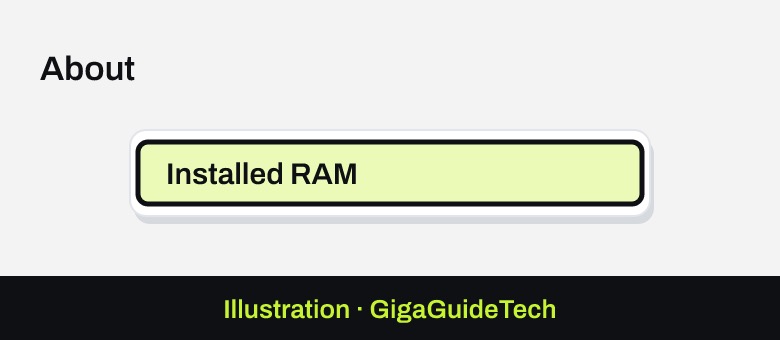
Illustration: Settings > System > About Illustration: System > About - Look for the Installed RAM entry, where you’ll also see your device’s CPU, system type (such as 64-bit), and Windows version.
Illustration: About
Older Windows versions (System Properties)
- Click Start.
- Right-click Computer and select Properties.
- In the System Properties window, under the System section, check Installed Memory (RAM).
Using Task Manager (Windows 10 and 11)
- Right-click the Taskbar and choose Task Manager.
- Open the Performance tab.
Illustration: Taskbar > Task Manager > Performance > Memory - Click Memory in the left panel to see your total RAM and, often, the memory type in the top-right corner.
Illustration: Performance > Memory - If memory type isn’t shown, check the listed Speed value — 4800 MHz or higher generally means you’re running DDR5.
Task Manager’s speed reading is also useful if you’re wondering whether your memory is actually running at its rated speed, since reaching the advertised number on many kits requires enabling XMP or EXPO for full RAM speed in your BIOS.
Checking RAM type with PowerShell
- Right-click Start and open Terminal (or Windows PowerShell).
- Type Get-CimInstance Win32_PhysicalMemory | Select-Object SMBIOSMemoryType and press Enter.
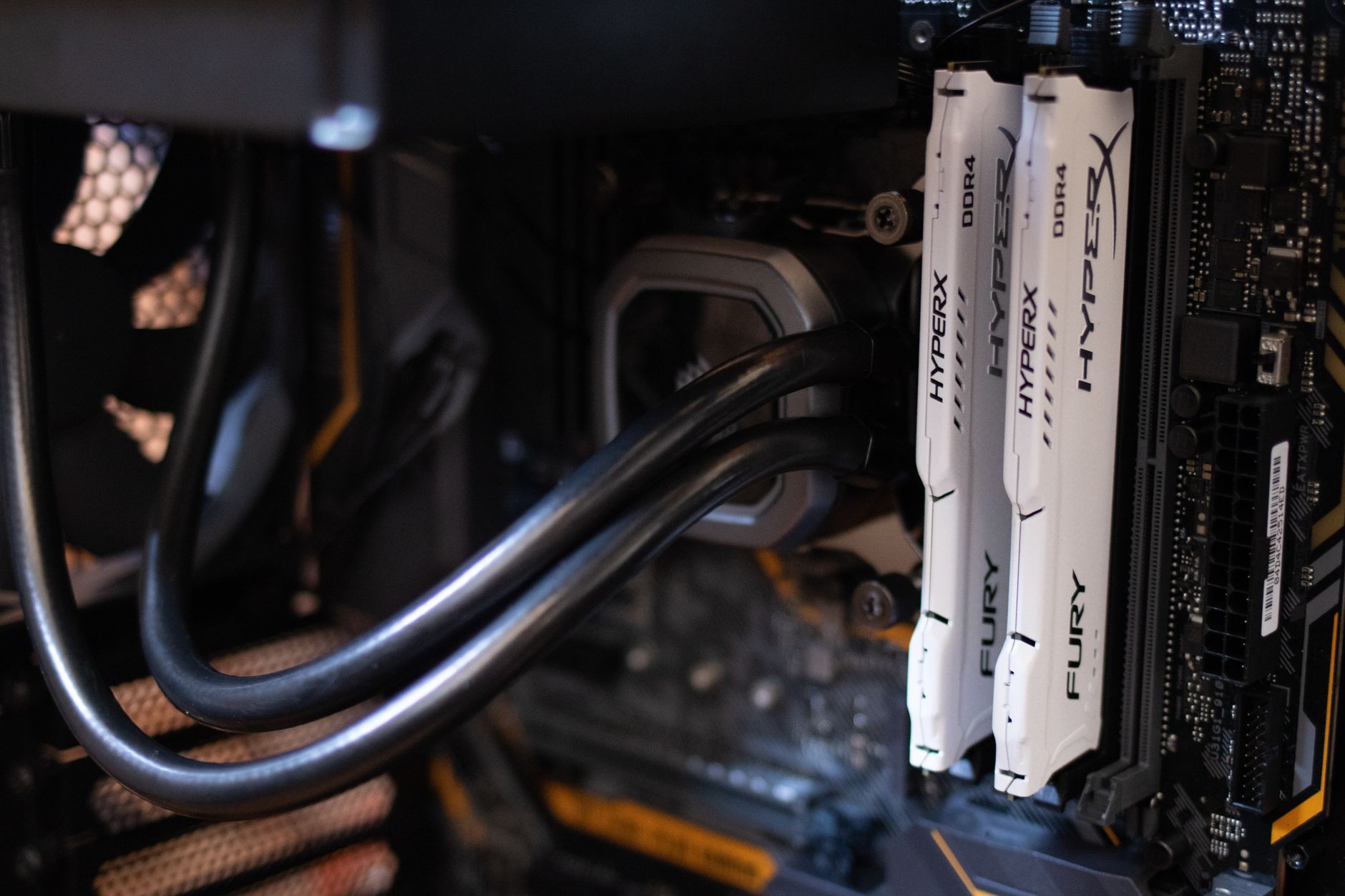
- Read the returned number: 24 means DDR3, 26 means DDR4, and 34 means DDR5.
If you want a deeper look at what separates these generations once you know which one you have, our DDR4 vs DDR5 RAM comparison breaks down the practical differences.
If both Task Manager and this command return a blank or zero result, it doesn’t mean something is broken. Windows pulls this information from firmware tables, and some older OEM laptops, motherboards with incomplete SMBIOS data, or systems with mixed RAM brands simply don’t report it.
How to check RAM on a Mac
- Press and hold the Option key, then choose Apple menu > System Information.
- Under Hardware on the left, click Memory to see how much RAM is currently installed.
Illustration: Apple menu > System Information > Memory - Check the Memory Slots pane for an Upgradeable Memory entry, which tells you whether you can replace or add memory on your specific Mac. If this pane doesn’t appear at all, upgradeable memory isn’t available on your model.
Which Macs can actually be upgraded?
Apple Silicon Macs (M1, M2, M3, M4, and later) cannot have their RAM upgraded under any circumstances. The memory is soldered directly next to the chip, so whatever configuration you buy is permanent for the life of the machine. This applies to every current MacBook Pro, MacBook Air, Mac Studio, Mac mini, and the 24-inch iMac from 2021 onward.
Intel-based Macs are a mixed bag. Non-Retina MacBook Pro models from mid-2012 and earlier had user-replaceable memory in sockets; every Retina MacBook Pro and everything released since has soldered RAM. The 27-inch iMac (2020 and earlier) may be upgradeable depending on the exact year, while the Retina 21.5-inch iMacs from 2015 are not. The Intel-based Mac Pro (2019) is the most flexible option, with 12 DIMM slots supporting up to 1.5TB of memory.
If you do upgrade an iMac’s memory, confirm it was recognized by checking Apple menu > About This Mac, which lists your total installed RAM. If the Mac won’t start afterward, double-check that each DIMM is fully seated and inserted in the correct direction, and give the system time — some iMacs run a memory initialization process after a RAM change that can leave the display dark for 30 seconds or more before anything appears.
How to check RAM on a Chromebook
- Make sure your device is running Chrome OS version 90 or later, since the built-in Diagnostics tool isn’t available on older versions.
- At the bottom right, select the time, then Settings.
- Select About ChromeOS, then Diagnostics.
- Run the memory test to check your system memory; a failed test can indicate faulty hardware, in which case you should contact your Chromebook’s manufacturer.
Chromebook RAM upgradability isn’t addressed in a single official policy — it depends entirely on the manufacturer and model, and most current Chromebooks use soldered memory. Check your device’s specific documentation before assuming it can be expanded.
If it still doesn’t work
- If Windows reports less RAM than you installed, check whether a redundant memory or memory mirroring feature is enabled, since that can hide part of your total capacity from the operating system.
- Open System Configuration (run MsConfig), go to the Boot tab, click Advanced options…, and make sure Maximum Memory isn’t checked with a lower value entered. Uncheck it and reboot if it is.
- Keep in mind that your BIOS and certain drivers can reserve a portion of memory for memory-mapped devices, which makes that portion unavailable to Windows and your apps even though it’s technically installed.
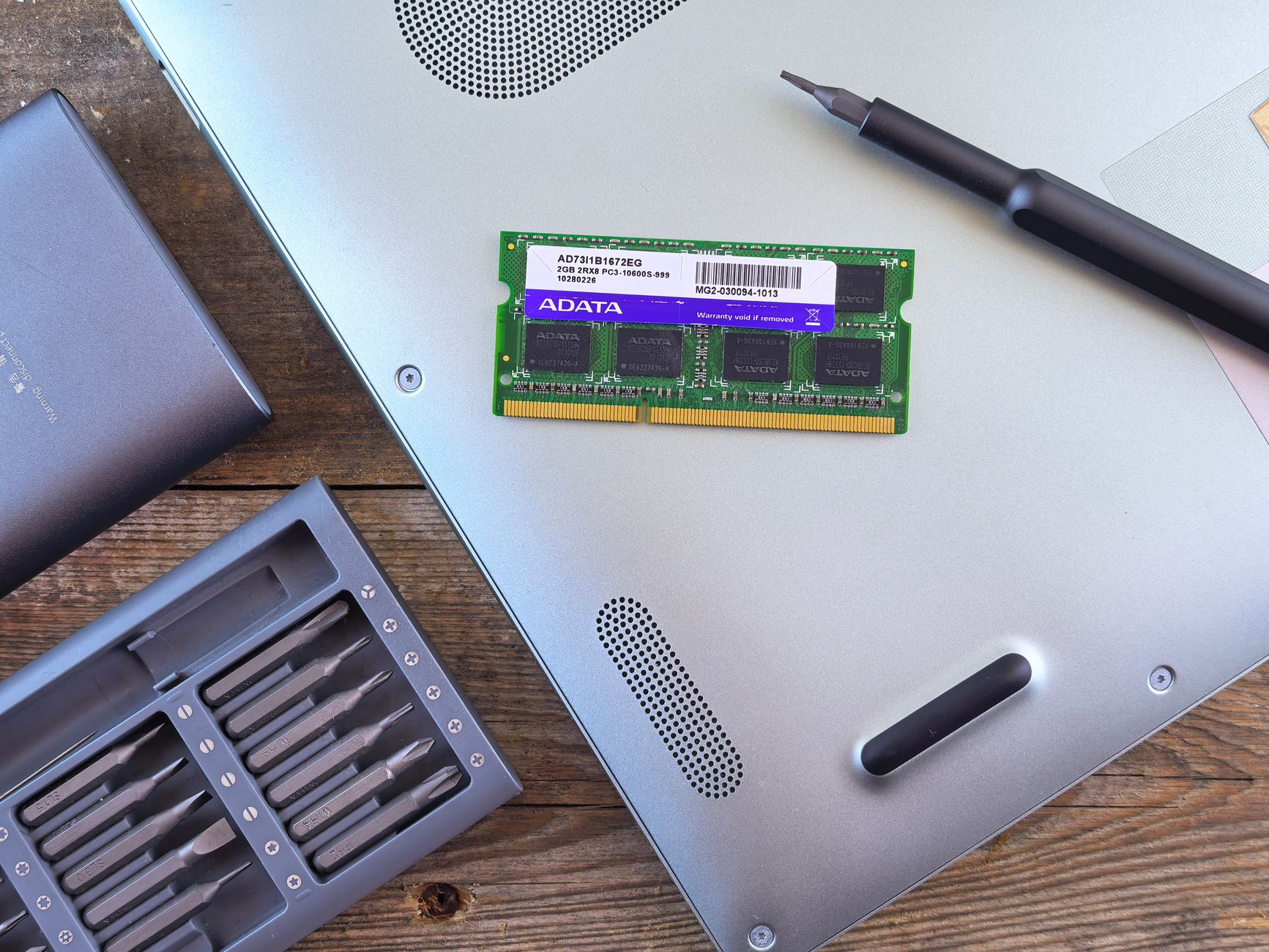
- For desktop PCs generally, upgradeable RAM in standard DIMM slots is common, but for laptops it varies enormously by model — always check your manufacturer’s official documentation before buying memory.
FAQ
How do I know if my laptop’s RAM is soldered or upgradeable?
There’s no universal rule for Windows laptops — it depends on the specific model, so check your manufacturer’s documentation. On Macs, open the Memory section in System Information and look for an Upgradeable Memory entry in the Memory Slots pane.
Why does Windows show less RAM than I installed?
This is often caused by a memory mirroring or redundant memory feature being enabled, or by a Maximum Memory limit set in System Configuration’s Boot options. The BIOS can also reserve some memory for other hardware, making it invisible to the OS.
Can I upgrade RAM on any MacBook?
No. Any Mac with an Apple Silicon chip (M1 and later) has memory soldered to the board and cannot be upgraded at all. Only older non-Retina Intel MacBook Pros, from mid-2012 and earlier, have user-replaceable memory.
What does the number from the PowerShell command mean?
It identifies your RAM’s generation: 24 is DDR3, 26 is DDR4, and 34 is DDR5. If the command returns nothing or a 0, your system likely isn’t reporting this data through its firmware tables, which is common on some older or mixed-configuration machines.
Is it worth upgrading RAM right now?
That depends on your needs and budget. It’s worth knowing that the RAM shortage could stretch through 2028 according to industry executives, and the high costs of DDR5 RAM have made upgrades pricier than in previous years, so it’s worth comparing current prices before deciding when to buy.
The bottom line
Checking your RAM takes less than a minute on any platform, but whether you can add more comes down entirely to your specific hardware. Windows desktops are usually the most flexible, modern Macs with Apple Silicon offer zero upgrade path, and Chromebooks vary by model. Before spending money on new memory, confirm both your current configuration and your manufacturer’s official upgrade specifications.
Sources: Microsoft Support, Microsoft Learn, Apple Support, Google Help
Where to buy


As an Amazon Associate I earn from qualifying purchases.