This guide is for anyone whose Windows 11 PC has become noticeably slower to boot, open apps, or switch between windows. If you want to speed up a slow Windows 11 PC without reinstalling the operating system or buying new hardware right away, these are the official steps from Microsoft Support, in the order they’re recommended.
Before you start
- Make sure you’re running Windows 11.
- Have your device plugged into power if it’s a laptop, since some steps may trigger a restart.
- None of the steps below delete personal files or require a backup, but if your PC is crashing or hanging frequently rather than just running slow, back up important files first as a precaution.
- Set aside 20 to 30 minutes, since a couple of steps (updates, malware scans) run in the background while you continue using your PC.
Step-by-step: official performance fixes
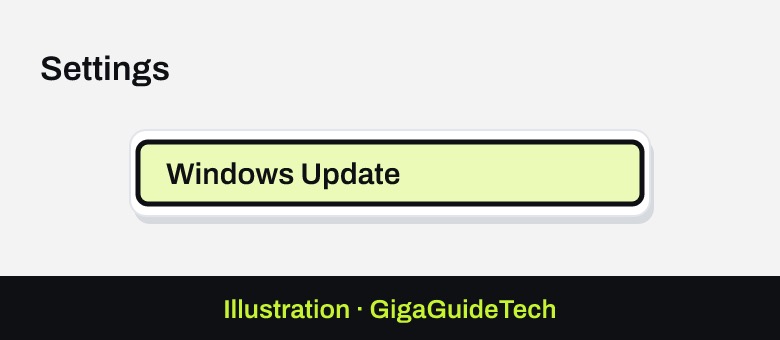
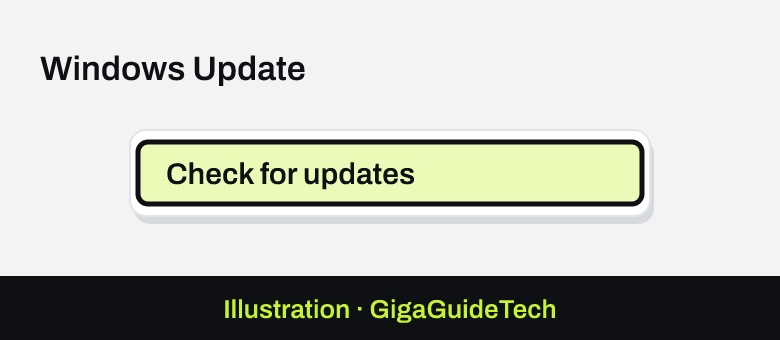
- Install Windows Updates. Select Start > Settings > Windows Update > Check for updates. If you see You’re up to date, move on to optional updates; otherwise select Download & install.

Illustration: Start > Settings > Windows Update Illustration: Settings > Windows Update > Check for updates Illustration: Settings > Privacy & security > Windows Security - Check for optional driver updates. Go to Start > Settings > Windows Update > Advanced options > Optional updates, select any available updates, and choose Download & install. Your device may restart to finish installing them, and you should keep your PC drivers updated going forward to avoid repeat slowdowns.
- Run a malware scan. Select Start > Settings > Privacy & security > Windows Security > Virus & threat protection, then select Quick scan. The device may restart if needed to complete removal of any threats found.
- Free up disk space with Storage Sense. Go to Start > Settings > System > Storage, select Storage Sense, then select Run Storage sense now.
Illustration: Settings > System > Storage Illustration: Settings > System > Power & battery - Manually clear temporary files. In the same Storage page, select Temporary files, check the items you want removed, and select Remove files.
- Uninstall apps you no longer use. Go to Start > Settings > Apps > Installed apps, find the app, select More options (…), then Uninstall.
- Disable unnecessary startup apps. Press Ctrl + Shift + Esc to open Task Manager, select Startup apps on the left, right-click any app you don’t need at boot, and select Disable.
- Turn off background activity for apps you rarely use. Go to Start > Settings > Apps > Installed apps, select an app’s More options (…), then Advanced options, and under Background app permissions set Let this app run in the background to Never.
- Reduce visual effects. Select Start, type Adjust the appearance and performance of Windows, open it, go to the Visual Effects tab, and select Adjust for best performance.
- Switch to Best performance power mode (desktops, or laptops plugged in). Go to Start > Settings > System > Power & battery, open the Power mode dropdown, and select Best performance. On a laptop this drains the battery faster and can make the device run warmer, so use it when you need maximum speed rather than all the time.
- Optimize your drives. Select Start, type Defragment and Optimize Drives, open it, select your drive, and select Optimize.
- Check resource usage and close heavy processes. Press Ctrl + Shift + Esc to open Task Manager, go to the Processes tab, and close anything you’re not using. The Performance tab shows which component (CPU, memory, or disk) is the bottleneck — pairing this with a look at your CPU temperature on Windows can help you tell whether the slowdown is a software issue or the processor overheating and throttling.
- Turn off notifications you don’t need. Go to Start > Settings > System > Notifications and disable them per app.
- Close unused apps and browser tabs, then restart. Select Start > Power > Restart, and afterward only keep open what you’re actually using.
Alternative: use Microsoft PC Manager
If you’d rather handle several of these steps from one place, Microsoft’s PC Manager app bundles storage cleanup, startup app management, and basic optimization tools into a single interface.
If it still doesn’t work
Some slowdowns can’t be solved with settings changes alone. Here’s what Microsoft recommends for specific situations:
- Your PC doesn’t meet minimum requirements: Windows 11 needs a 1 GHz or faster processor with two or more cores on a compatible 64-bit chip, 4 GB or more of memory, and 64 GB or more of available storage. If your hardware falls short of these, software tweaks will only help so much, and an upgrade may be the realistic fix.
- Slowness started right after a recent update and uninstalling it didn’t help: Go to Settings > System > Recovery, find Fix problems with Windows Updates, and select Reinstall now. This reinstalls Windows without affecting your files, settings, or installed apps.
- The Optimize Drives tool won’t run or gets stuck: Open the Services app (services.msc) and confirm the Disk Defragmenter service is enabled.
- You’re running more than one antivirus or antispyware program: Having multiple security apps active at once can make your PC slow or unstable, or cause unexpected restarts. Stick to one.
- High CPU usage traces back to drivers: This is often a chipset driver issue. Download the correct chipset driver from your PC or motherboard manufacturer’s official website for your exact model.
- Classic Outlook hangs or shows “Not Responding”: This is a known issue tied to POP accounts and PST files, especially when stored on OneDrive, following certain Windows updates. It’s been fixed in later updates, so make sure Windows is fully up to date.
FAQ
Will any of these steps delete my files?
No. None of the official steps above remove personal files or require a backup. If your PC is also crashing or freezing outright, rather than just running slow, that’s when backing up and considering a “Reset this PC” with the “Keep my files” option becomes worth looking into.
Should I leave Power mode set to Best performance all the time?
Not necessarily. Best performance pushes the CPU harder, which increases power draw. On a laptop that means faster battery drain and a warmer device, so it’s better reserved for moments when you actually need the extra speed rather than left on permanently.
Why doesn’t optimizing my drive or freeing up space fix an old PC?
If your hardware is near or below Windows 11’s minimum requirements, cleanup and settings changes have limited room to work with. In that case, the more durable fix is upgrading the component that’s the bottleneck, whether that’s storage, memory, or the processor itself.
What’s the difference between this and reinstalling Windows?
These steps are non-destructive maintenance: updates, cleanup, and settings adjustments. Reinstalling Windows through Fix problems with Windows Updates is a more specific, last-resort option Microsoft offers only when a recent update is the suspected cause and uninstalling it hasn’t helped — and even then it preserves your files and apps.
The bottom line
Most Windows 11 slowdowns come from a buildup of the same few things: pending updates, a cluttered startup list, low disk space, and too many background processes fighting for resources. Working through Microsoft’s official steps in order — updates and a malware scan first, then storage cleanup, startup and background app trimming, and finally visual effects and power settings — resolves the majority of cases without touching your files. If your hardware is genuinely underpowered for Windows 11’s minimum requirements, though, no amount of cleanup will fully fix it, and planning an upgrade like a faster drive or more RAM (see our DDR4 vs DDR5 guide) becomes the more realistic path forward.
Sources: Microsoft Support, Microsoft Learn
Where to buy
As an Amazon Associate I earn from qualifying purchases.