This guide is for anyone who just bought a smart plug, light, lock, thermostat, or sensor with the Matter logo and wants to control it from their iPhone. Follow these steps and you’ll learn how to add Matter devices to Apple Home, understand when you need a home hub, and know what to try if pairing fails.
Before you start
- Update your iPhone or iPad to the latest software version.
- Make sure you’re signed in with the Apple Account you used to set up your other Matter accessories.
- Turn on Bluetooth in the Settings app.

Illustration: Settings > Bluetooth - Connect your iPhone or iPad, any existing accessories, and your home hubs to the same Wi-Fi network.
- Check the accessory’s manual to see if it needs extra hardware, a firmware update, or extra setup in the manufacturer’s app before it can join Apple Home.
- No backup is required for this process since it doesn’t risk any existing data.
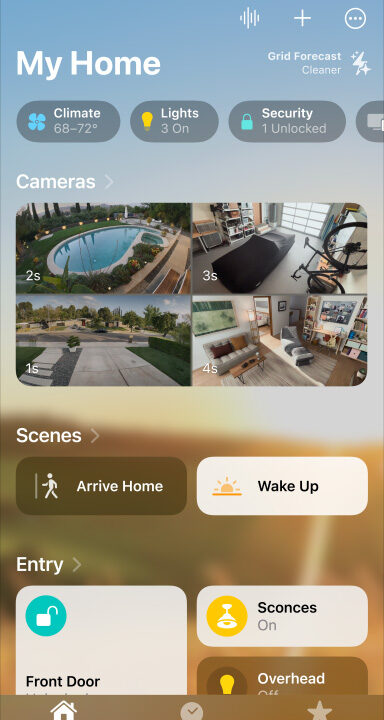
You’ll also need an iPhone or iPad to complete setup — accessories can’t be added to Apple Home using a Mac. The Home app currently supports Matter air conditioners, bridges, lights, locks, outlets, switches, thermostats, blinds and shades, and sensors for motion, ambient light, contact, temperature, and humidity.
Do you need a home hub?
If your iPhone runs iOS 18 or later, you can add and control Matter accessories directly from the Home app without a home hub. That said, Apple still recommends setting up a home hub for the best experience, and it becomes a requirement once Thread-based accessories are involved.
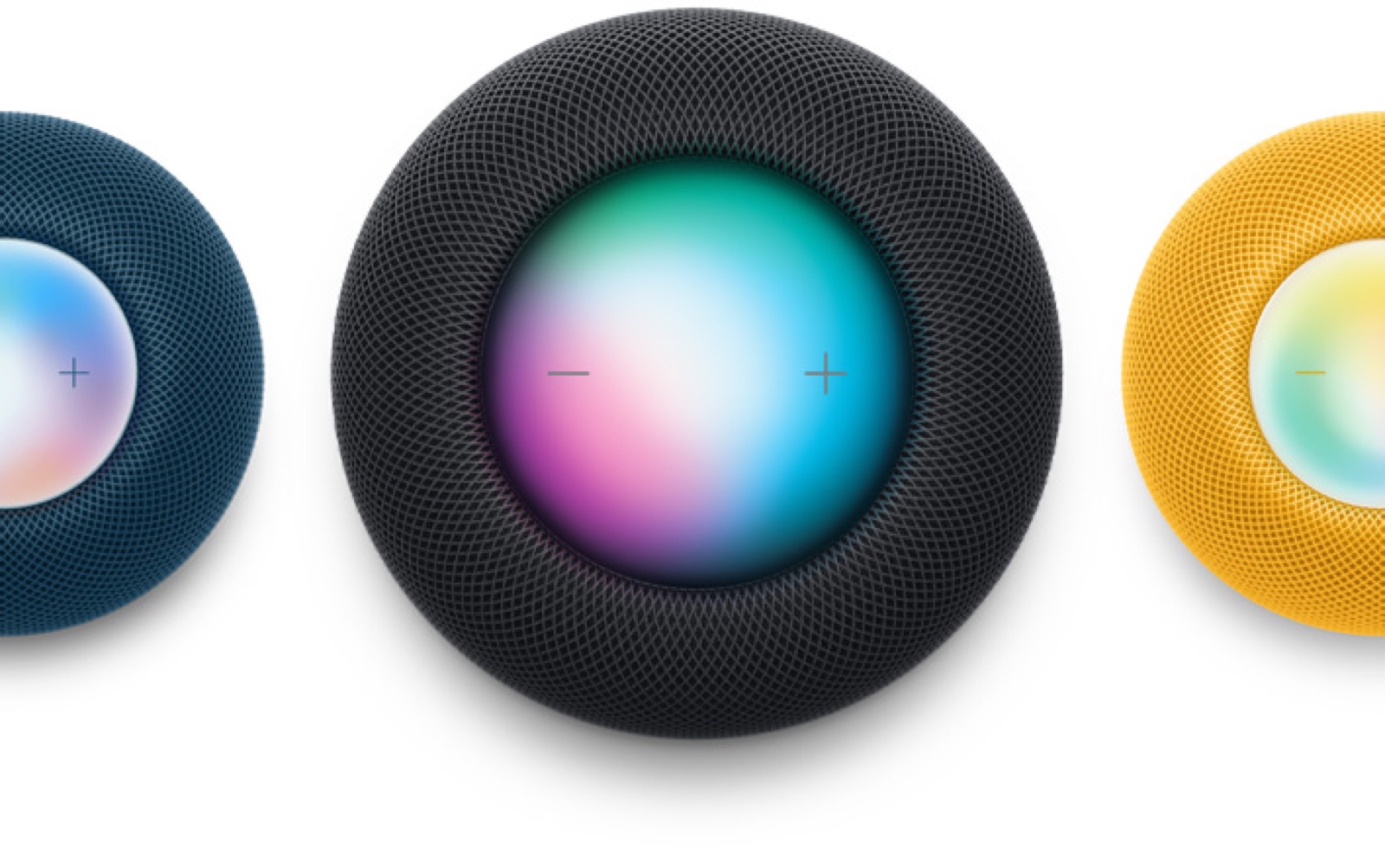
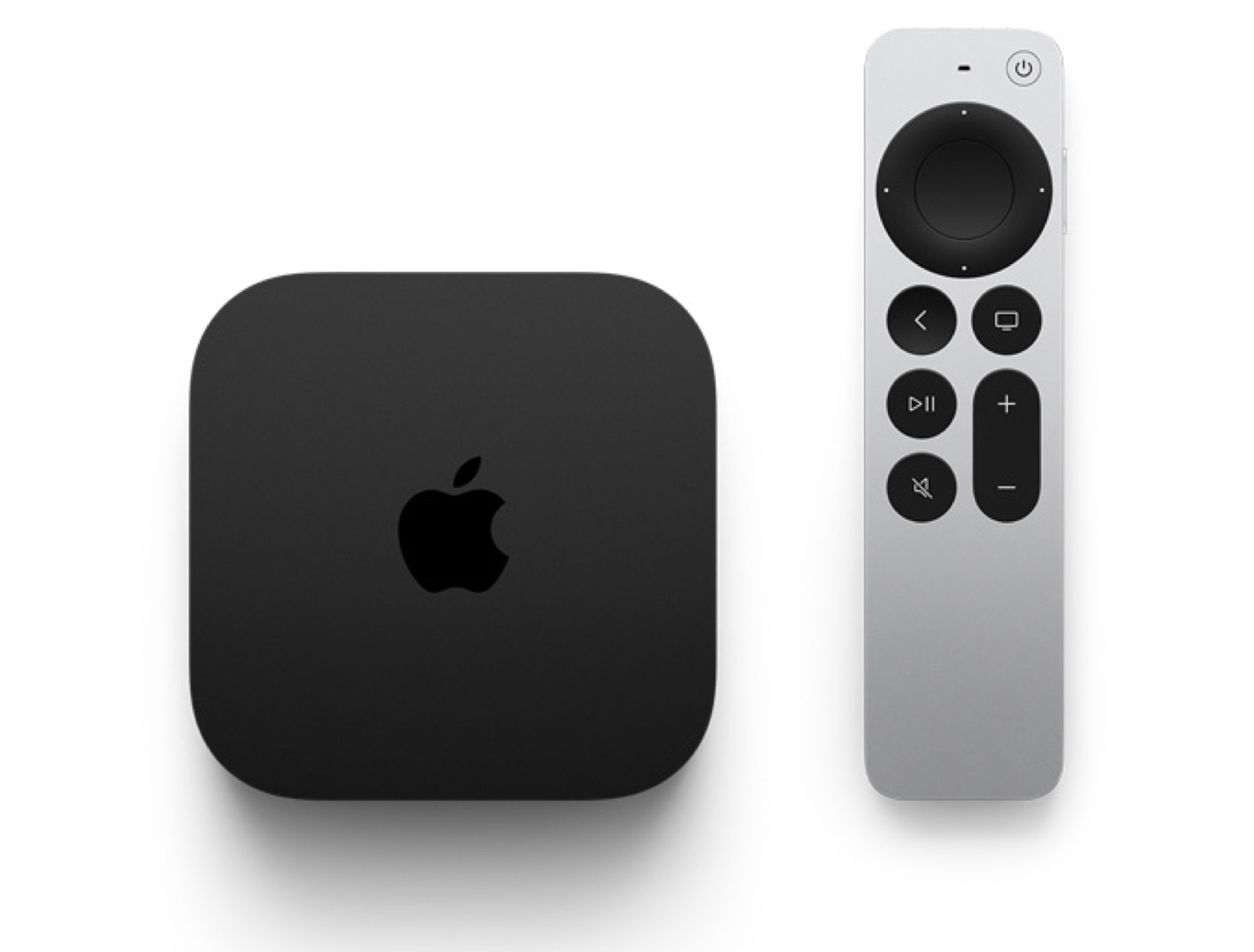
Thread accessories need a Thread-enabled hub such as an Apple TV 4K, HomePod (2nd generation), HomePod mini, or a compatible third-party Thread border router. Thread-enabled iPhones running iOS 18 or later can also pair and manage Thread accessories locally, though this may require a software update from the accessory’s manufacturer. Apple has reportedly been working with other manufacturers on smart home gear, so the accessory ecosystem around Apple Home keeps expanding beyond Apple’s own hubs.
How to add a Matter device to Apple Home
Adding a new accessory
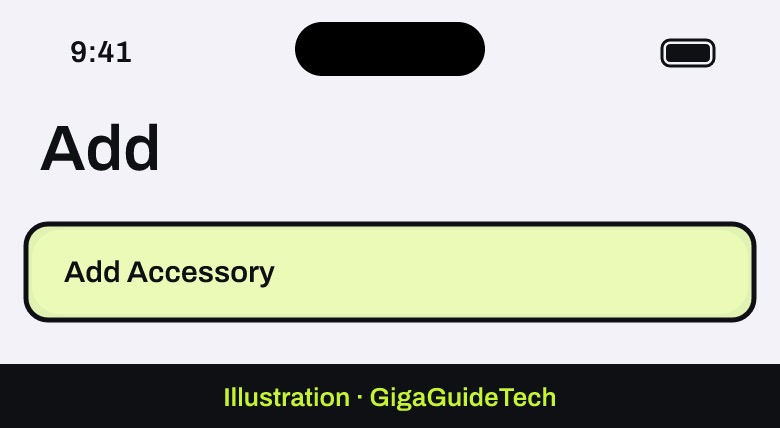
- Open the Home app on your iPhone or iPad and tap the Add button.
Illustration: Home app > Add - Tap Add Accessory.
Illustration: Home > Add > Add Accessory - If the accessory hasn’t been paired to another app before, follow the on-screen prompts to scan its code or hold your device near it.
- Follow the remaining on-screen instructions to finish setup.
If the accessory was already paired to another app
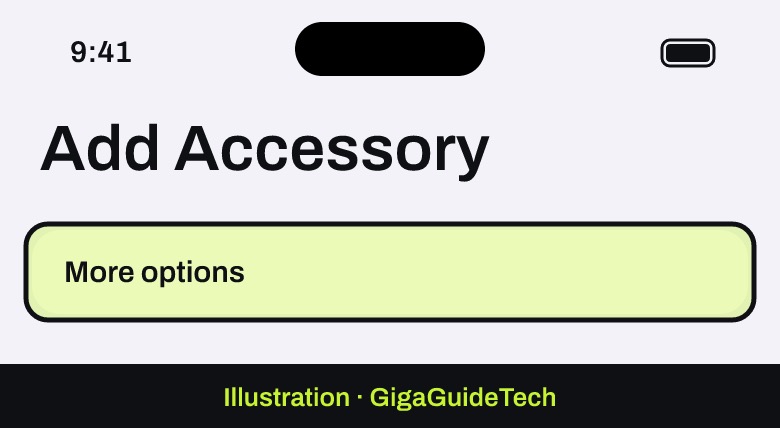
- Open the Home app and tap Add, then Add Accessory.
- Tap More options, then select your Matter accessory from the list.
Illustration: Add Accessory > More options - Follow the on-screen instructions to complete pairing.
Setting up multiple accessories at once
Apple Home supports multipack pairing. If the box your accessories came in has a multi-device QR code, scanning that single code can pair every accessory in the pack at once instead of adding them one by one.
What codes you might be asked for
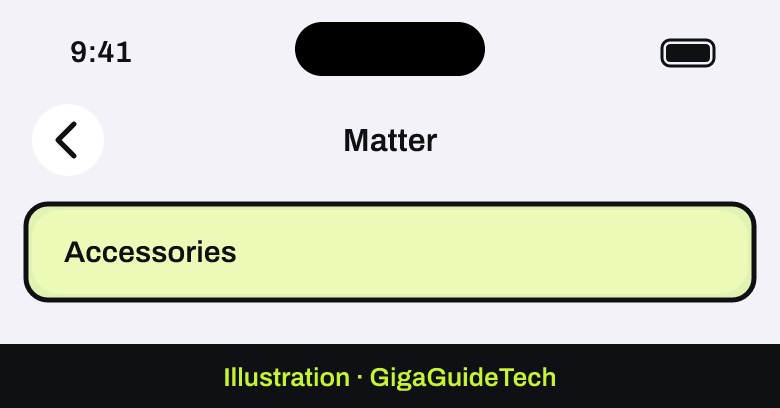
Depending on the accessory, setup may ask you to scan a QR code, enter an 8-digit HomeKit setup code printed on the device, its box, or its documentation, or enter an 11- or 21-digit code specific to Matter accessories. Once paired, these accessories sync across your devices and are stored in Settings > General > Matter > Accessories using iCloud Keychain, no matter which app you originally used to set them up.
If it still doesn’t work
“Unable to Add to Home”
- Confirm the accessory is powered on.
- Move the accessory closer to your router during setup.
- Unplug any third-party bridges and home hubs (HomePod, HomePod mini, Apple TV), then plug them back in.
- Reset the accessory according to its manual if the problem continues.
“Network is Incompatible”
Check that your iPhone or iPad is on a Wi-Fi network that supports the 2.4 GHz standard. Some Matter accessories can’t connect to 5.0 GHz-only networks. If you’ve had other Wi-Fi reliability issues on your iPhone beyond Matter setup, it’s worth checking out this guide on an iPhone that keeps disconnecting from Wi-Fi.
“Accessory is Not Supported”
This usually means the accessory needs a firmware update. Download the manufacturer’s own app and install the latest firmware update from there before trying again in Apple Home.
Accessories not responding at all
- Update your iPhone, iPad, or Mac to the latest software.
- Close the Home app completely and reopen it.
- Make sure your device and your accessories are on the same Wi-Fi network.
- Turn on Bluetooth in Settings.
- Check the manufacturer’s app for a needed firmware update; if accessories aren’t responding there either, you may need to reset them.
If general Wi-Fi connectivity seems to be the root cause rather than the accessory itself, this broader guide on fixing Wi-Fi connection problems covers more ground across devices.
FAQ
Can I add Matter accessories without a home hub?
Yes, if your iPhone runs iOS 18 or later you can add and control Matter accessories without a home hub. A hub is still recommended for the best experience and is required for Thread-based accessories.
Why can’t I add an accessory using my Mac?
Apple Home only lets you add accessories using an iPhone or iPad; a Mac can’t be used for the initial setup step.
What should I do if the accessory was used in another home before?
If it was already added to your home, or previously used in a different home, you may need to reset the accessory first. Check its manual or contact the manufacturer for the correct reset steps.
Can someone else in my household add accessories to our home?
Only if the Home Owner grants permission. The Home Owner needs to select that person from the Home app’s resident list and turn on Add and Edit Accessories for them.
The bottom line
Adding a Matter accessory to Apple Home is mostly a matter of scanning a code and following prompts, but the extra detail worth remembering is the hub situation: iOS 18 lets you skip a home hub entirely for basic Matter devices, while Thread-based gear still needs an Apple TV, HomePod, or compatible third-party Thread border router. If something won’t pair, the fixes are straightforward — check power, proximity, Wi-Fi band, and firmware before assuming the accessory is broken.
Sources: Apple, Apple Support
Where to buy


As an Amazon Associate I earn from qualifying purchases.