This guide is for Windows 11 PC gamers who want smoother frame rates and quicker load times without spending money on new hardware. Follow these steps to boost gaming performance on Windows 11 using settings that are already built into the operating system — no registry edits, no third-party software, just about ten minutes of your time.
Before you start
- Make sure Windows 11 is fully updated through Settings > Windows Update, since updates often include performance improvements.
- Install the latest graphics driver from your GPU maker’s website (NVIDIA, AMD, or Intel) rather than relying on Windows Update alone.
- Know whether your monitor supports HDR and a high refresh rate, since two of the steps below only apply if it does.
- If you plan to try the advanced step that disables Memory Integrity, understand that it temporarily reduces your PC’s security protection and should be re-enabled afterward.
Steps to boost gaming performance on Windows 11
- Open Settings, go to Gaming > Game Mode, and make sure the toggle is turned On. It’s enabled by default, but it’s worth confirming. Game Mode stops Windows Update from installing drivers or showing restart notifications while you’re playing, which can help keep your frame rate stable.

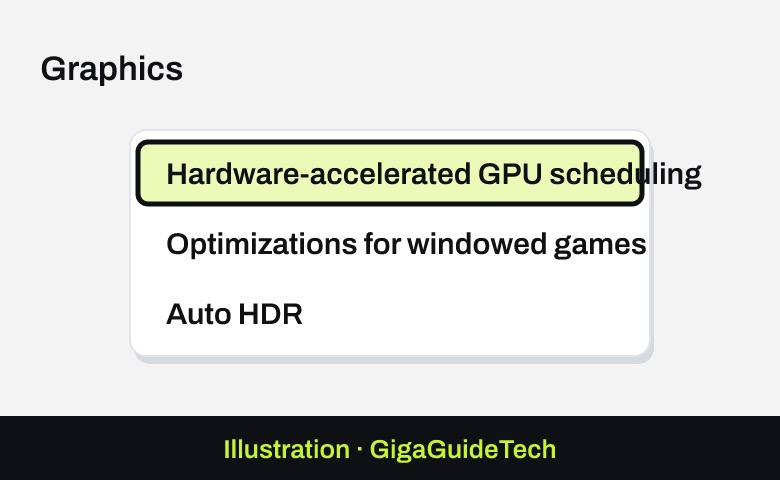
Illustration: Settings > Gaming > Game Mode - Go to Settings > System > Display > Graphics and select Change default graphics settings. If your GPU and driver support it, you’ll see a toggle for Hardware-accelerated GPU scheduling. Turn it on — it lets Windows hand off most GPU scheduling work to the graphics card itself, taking some load off your CPU.
Illustration: Settings > System > Display > Graphics Illustration: Hardware-accelerated GPU scheduling Illustration: Settings > System > Display - On the same screen, turn on Optimizations for windowed games. This moves compatible DirectX 10 and 11 games running in windowed or borderless modes from the older presentation model to a newer one, which reduces frame latency and can help with screen tearing in supported titles. Restart your game after enabling it.
- If you have an HDR monitor, enable Auto HDR on the same page. It upgrades the color and brightness of SDR games that use DirectX 11 or later. Note that turning on Auto HDR automatically enables Optimizations for windowed games too, so if you ever want to turn that off, disable Auto HDR first.
- If your laptop or PC has more than one GPU (common on gaming laptops with integrated and dedicated graphics), go to Settings > System > Display > Graphics, find your game under Custom options for apps, select Options, and choose High performance. This forces the game to use your faster, dedicated GPU instead of the power-saving one. Restart the game afterward.
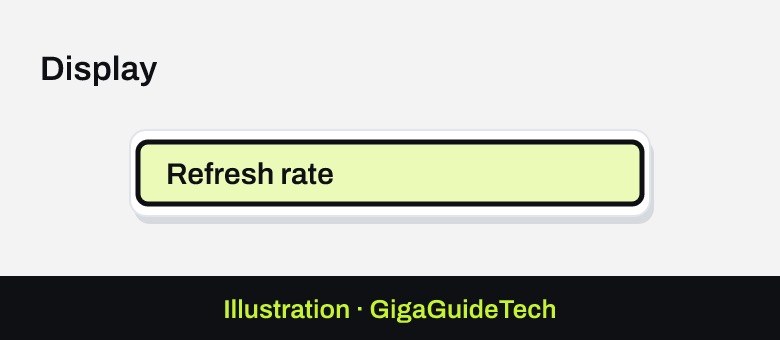
- Head to Settings > System > Display and set your resolution to your monitor’s native resolution, then set the refresh rate to the highest option available. This ensures the sharpest image and smoothest motion your display can handle.
- To cut down on distractions while playing, go to Settings > System > Notifications and turn notifications off, especially if your PC also handles work or chat apps.
- Press Win + G to open the Xbox Game Bar. From here you can monitor performance, and by selecting the gear icon and choosing Gaming Features, you can check whether your system supports DirectStorage. DirectStorage speeds up load times on games built to use it, but only if your PC has an NVMe SSD and a DirectX 12 GPU with Shader Model 6.0 support — it works automatically and isn’t something you turn on manually.
Advanced: temporarily disabling Memory Integrity (optional, with a security trade-off)
On some systems, Memory Integrity and the Virtual Machine Platform feature can affect gaming performance. To turn off Memory Integrity, search for Core Isolation from the Start menu, open it, and switch off Memory integrity, then restart. To disable the Virtual Machine Platform, search for Windows features, open Turn Windows features on or off, uncheck Virtual Machine Platform, select OK, and restart. Both of these reduce protection against malicious code, so only disable them temporarily for gaming and turn them back on afterward.
If it still doesn’t work
If these settings don’t move the needle, a few other factors outside the Gaming menu can be holding your PC back. Right-click This PC, choose Properties > Advanced system settings > Performance Settings, and select Adjust for best performance to strip back visual effects that eat into system resources. On a laptop, go to Settings > System > Power & battery and choose a performance-oriented plan, since high-performance laptops can lose 30 to 50 percent of their frame rate when running on battery alone. It’s also worth making sure you keep your drivers updated directly from the manufacturer, and checking that your system isn’t overheating — you can check your CPU temperature to see if heat is throttling performance, and consider a cooling pad if you’re gaming on a laptop.
FAQ
Does Game Mode actually increase my FPS?
Game Mode mainly helps achieve a more stable frame rate by preventing background interruptions like driver installs and restart prompts while you play, rather than guaranteeing a specific FPS boost. The effect varies by game and system.
Do I need to manually turn on DirectStorage?
No. DirectStorage activates automatically when both your hardware (an NVMe SSD and a DirectX 12 GPU with Shader Model 6.0) and the specific game support it. You can check compatibility through the Xbox Game Bar’s Gaming Features panel.
Is it safe to turn off Memory Integrity for gaming?
It can improve performance on some configurations, but Microsoft is clear that doing so leaves your device more vulnerable to threats. If you try it, treat it as a temporary setting and turn it back on once you’re done gaming.
Why does my laptop perform worse when unplugged?
High-performance gaming laptops can lose 30 to 50 percent of their frame rate on battery power because the power plan throttles performance to save energy. Plug in and select a performance-oriented power plan under Settings for the best results.
The bottom line
None of these changes require special tools or risky system tweaks — they’re all official Windows 11 settings designed to squeeze more performance out of hardware you already own. Start with Game Mode, GPU scheduling, and the display settings, then move on to the optional advanced steps only if you need the extra headroom.
Sources: Microsoft Support, support.xbox.com, intel.com
Where to buy
As an Amazon Associate I earn from qualifying purchases.